Budgets & forecasting
A budget in Novex is the planned spend and revenue for an event, broken into line items. Once approved and locked, it becomes the baseline you measure committed and actual spend against. Forecasting layers on top, letting you model how an event will land before it closes.
Create a budget
- Go to Finance → Budgets → + New budget.
- Attach it to an event and give it a name (e.g. “Riyadh Gala 2026”).
- Set the currency — SAR for KSA events, or USD / your tenant default.
- Save. The budget starts in
DRAFT.
Add budget lines
Each line is one planned spend or revenue item:
- Category — Venue, AV / Production, Catering, Transport, Hospitality, …
- Description — free text.
- Quantity / Days / Unit price — the planned amount is quantity × days ×
unit price (leave days at
1for a flat item), the same day-aware line shape used on quotations and invoices. - Type — cost or revenue, so the budget shows net margin.
Add lines under + Add line on the budget detail page. While the budget is
DRAFT, you can edit or delete any individual line — change a figure or
remove a line that’s no longer planned. Subtotals and the net total recompute
live. You can also delete an entire budget you no longer need (with the
right permission); locked budgets are protected from edits, so delete or
re-open before reworking the plan.
Submit, approve, and lock
- On a
DRAFTbudget, click Submit for approval (→PENDING_APPROVAL). - A user with the approval permission reviews and Approves it
(→
APPROVED). Approval is audit-logged. - Click Lock (→
LOCKED) to freeze the baseline. Locked lines can no longer be edited, so variance is measured against a stable plan. - After the event, Close the budget (→
CLOSED) once all actuals are in.
Status
| Status | Meaning |
|---|---|
DRAFT | Editable. Building the plan. |
PENDING_APPROVAL | Awaiting internal sign-off. |
APPROVED | Cleared; ready to lock. |
LOCKED | Baseline frozen; lines no longer editable. |
CLOSED | Event finished; budget archived. |
Tracking against the budget
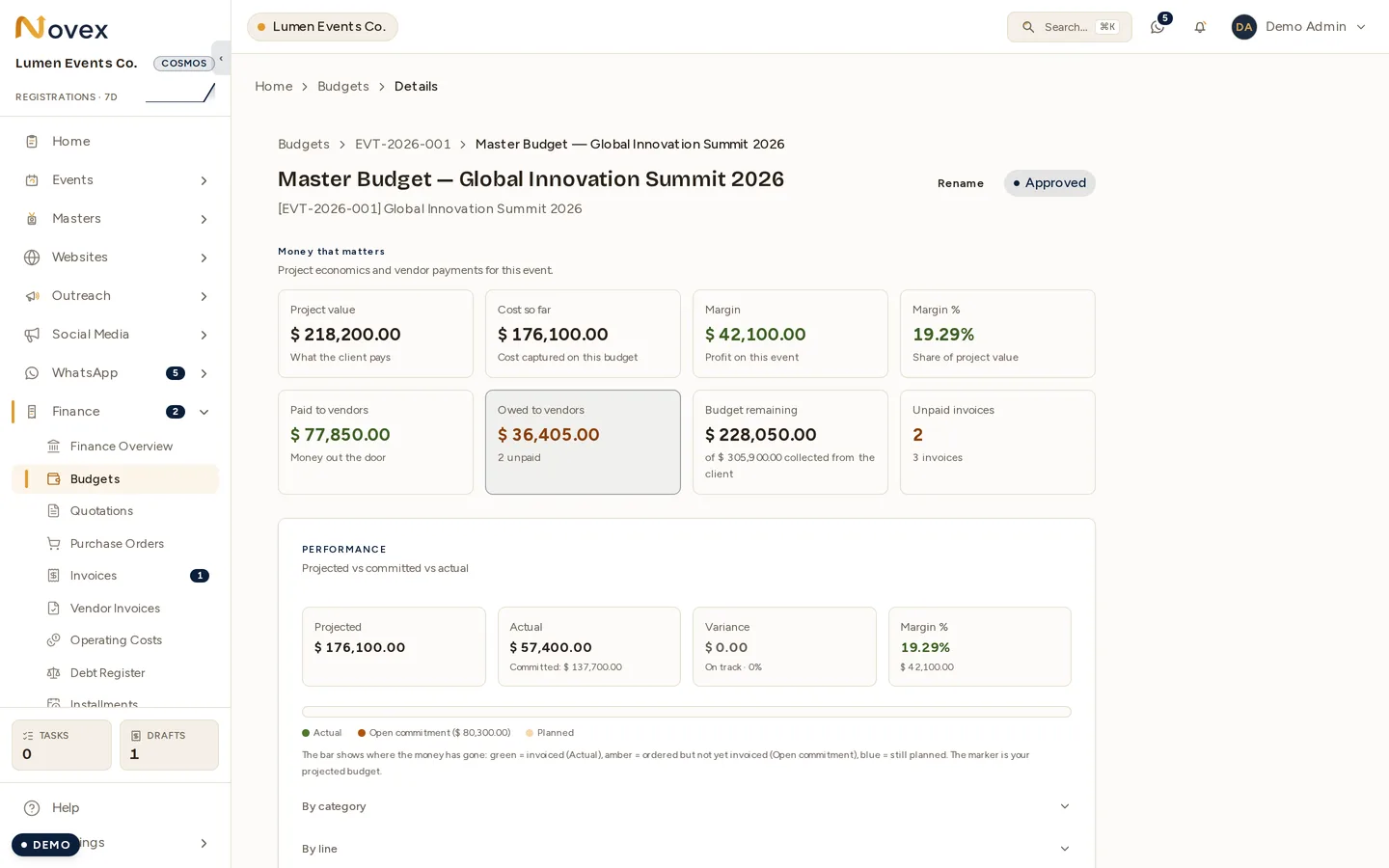
Once an event is linked, Novex rolls real spend up to the matching budget lines:
- Committed — value of purchase orders raised against the event.
- Actual — value of vendor invoices and recorded payments.
- Variance — planned minus actual, per line and in total.
The redesigned budget view surfaces committed, actual, and variance as at-a-glance figures with colour-coded status, so you can see mid-event — at a glance — where you are tracking over or under plan.
Forecasting
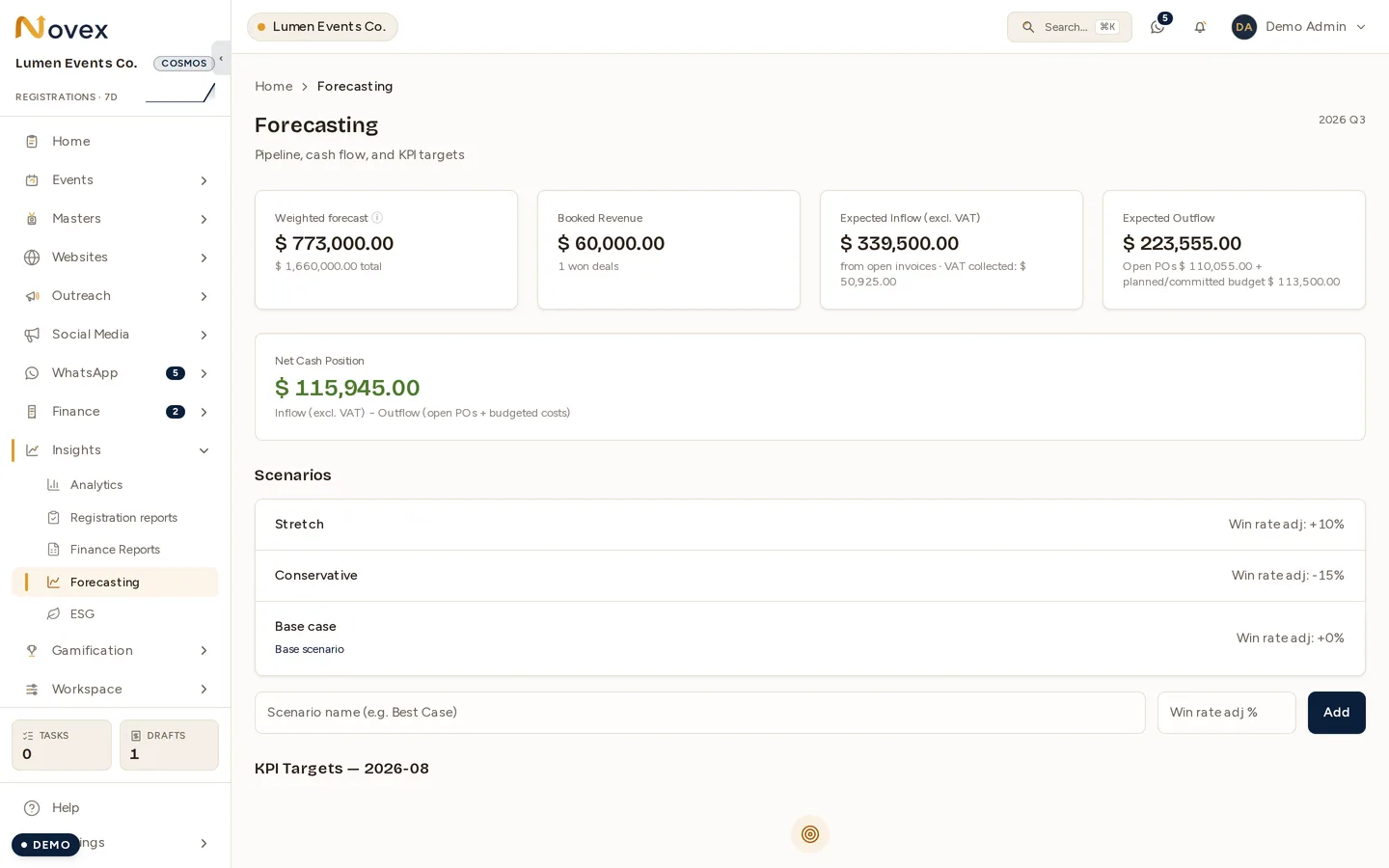
Forecast scenarios let you model how an event will finish without changing the locked budget.
- Open Finance → Forecasting and create a scenario for the event.
- Adjust assumptions — headcount, ticket sales, variable costs — to project a revised outcome.
- Novex saves a snapshot of each scenario, so you can compare versions over time (e.g. early-bird forecast vs. final-week forecast).
- Compare the scenario against the locked baseline to see projected variance.
Scenarios are planning tools — they never overwrite the locked budget or the recorded actuals.
Tips and limits
- Lock the budget before the event runs so variance is measured against a fixed baseline, not a moving target.
- Link every PO and vendor invoice to the event so committed and actual spend roll up correctly.
- Keep multiple forecast scenarios to track how the projection evolved; each snapshot is preserved.