Command Center
The Command Center (CC) is the operator’s dashboard for show day. Open it on a screen at the venue, glance at the tiles, drill into a drawer for detail. Designed to never make you leave the page.
Where to find it
/t/<slug>/events/<id>/command-center — accessible from any event whose status
is IN_EXECUTION or COMPLETED, or whose start date is today-or-earlier. You
can also open it for PLANNING events to preview, with a read-only banner.
The tiles
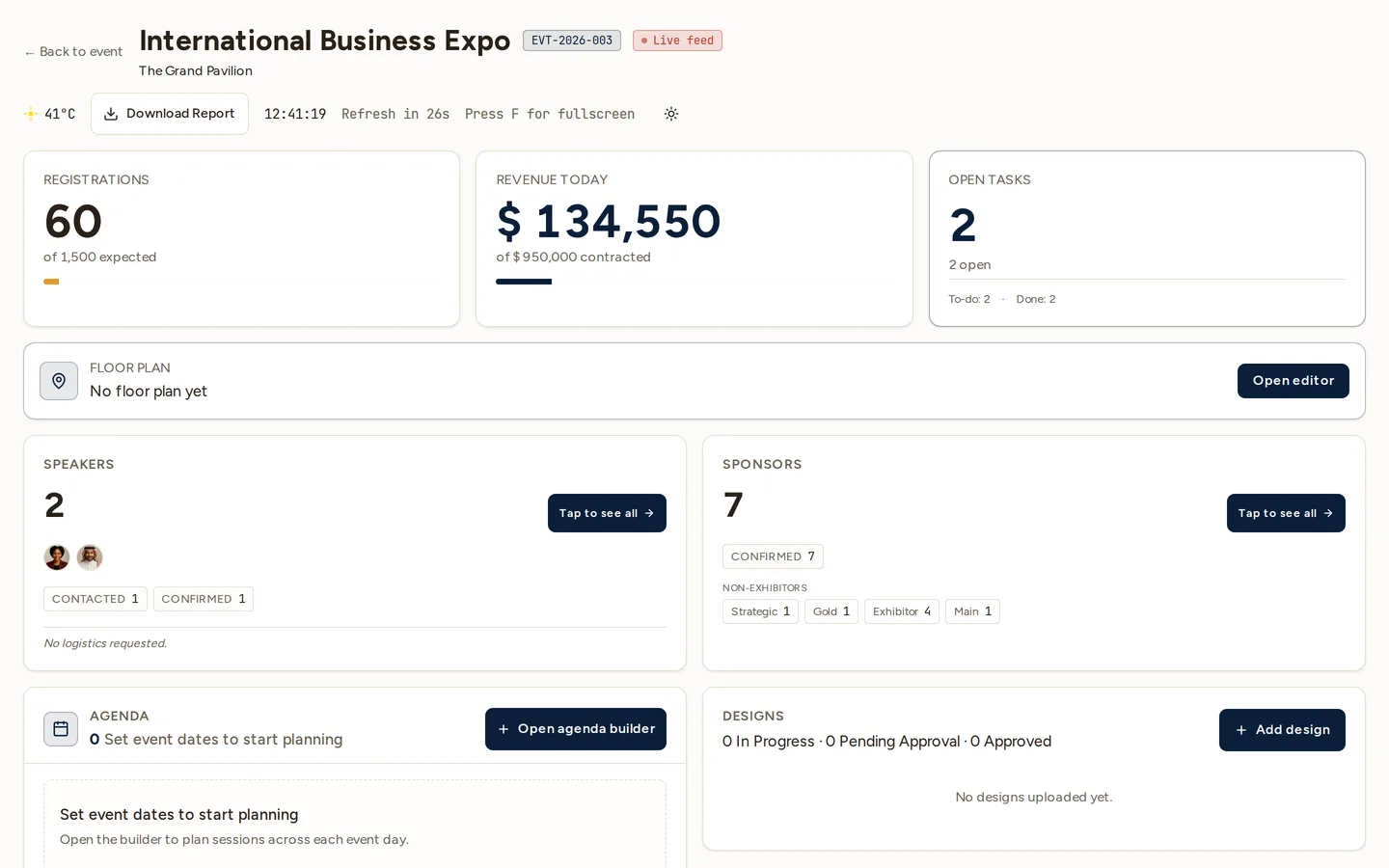
Top row, left to right:
- Registrations — count +
% of expected capacity. Updates every 30 s. - Revenue today — paid-today subset of issued invoices.
- On-time staff — count of check-in shifts that started ≤ 5 min late.
- Live incidents — count of OPEN incident rows. Click to open the incidents list.
Below the tiles, a flexible grid surfaces:
- Agenda — current and next session per track.
- Sponsors — count by status (Confirmed / Pending / Dropped).
- Speakers — count + thumbstrip of attendees with
arrival/departureflags. - Open tasks — tasks due today (BullMQ-backed), inline edit + status cycle from the drawer.
- Designs — uploaded mockup PDFs for review during the show.
- Floor plan — booth assignment progress + drawer to live-edit.
- Delivery checklist — proof-of-delivery items, pass/fail/issue.
- Weather — current conditions for the venue city.
- Arrivals & departures — speaker flight schedule.
Empty tiles render as — so the dashboard layout stays stable.
Drawers (vs. nav-away)
Most tiles open a right-side drawer rather than navigating away. This is deliberate — once you’re in the CC you should never have to leave it. The drawer pattern is consistent: backdrop click closes, Escape closes, unsaved changes prompt before closing.
The current drawers:
- Floor plan editor — full booth-assignment canvas + catalog inline.
- Agenda — quick session edit, conflict warnings.
- Sponsors — add/edit/remove sponsors for the event.
- Open tasks — full task list with create/edit/cycle status.
- Speakers — manage attached speakers, accommodation + flight logistics.
- Delivery checklist — mark items delivered, attach photo proof, leave notes. Doubles as the “Download Delivery Report” PDF source.
- Designs — preview uploaded designs full-screen.
Each drawer’s data is pre-loaded with the page render so opening is instant even on slow connections.
Refresh and freshness
The CC auto-refreshes every 30 s via router.refresh(). The footer shows
Last refresh and Refresh in Ns so you know how stale the numbers are.
You can disable auto-refresh with the toggle in the corner if you’re presenting
on a screen and don’t want flickers.
Read-only mode
If you visit the CC before the event hits IN_EXECUTION, every drawer renders
read-only with a banner explaining why. Operators on the day can flip the
event status from PLANNING → IN_EXECUTION from the event detail page; the
CC unlocks the moment that lands.
Tips
- Fullscreen it — press
Fto enter browser fullscreen for a single always-on display. - Pin the tab in your browser so a tab-restore doesn’t bury it.
- One tab per event — open multiple events in separate tabs if your team is running two shows the same week.
Related
- Floor plan — the live booth canvas behind the CC drawer.
- Speaker travel & stay — the arrivals & departures data.
- Kiosk check-in — the door station feeding the registrations tile.