Call for Speakers
Call for Speakers lets anyone apply to speak at your event from a public form, then gives your team a review queue to approve or decline each one. Approving an applicant adds them to your confirmed speaker line-up — and onto the public website — automatically.
The public application page
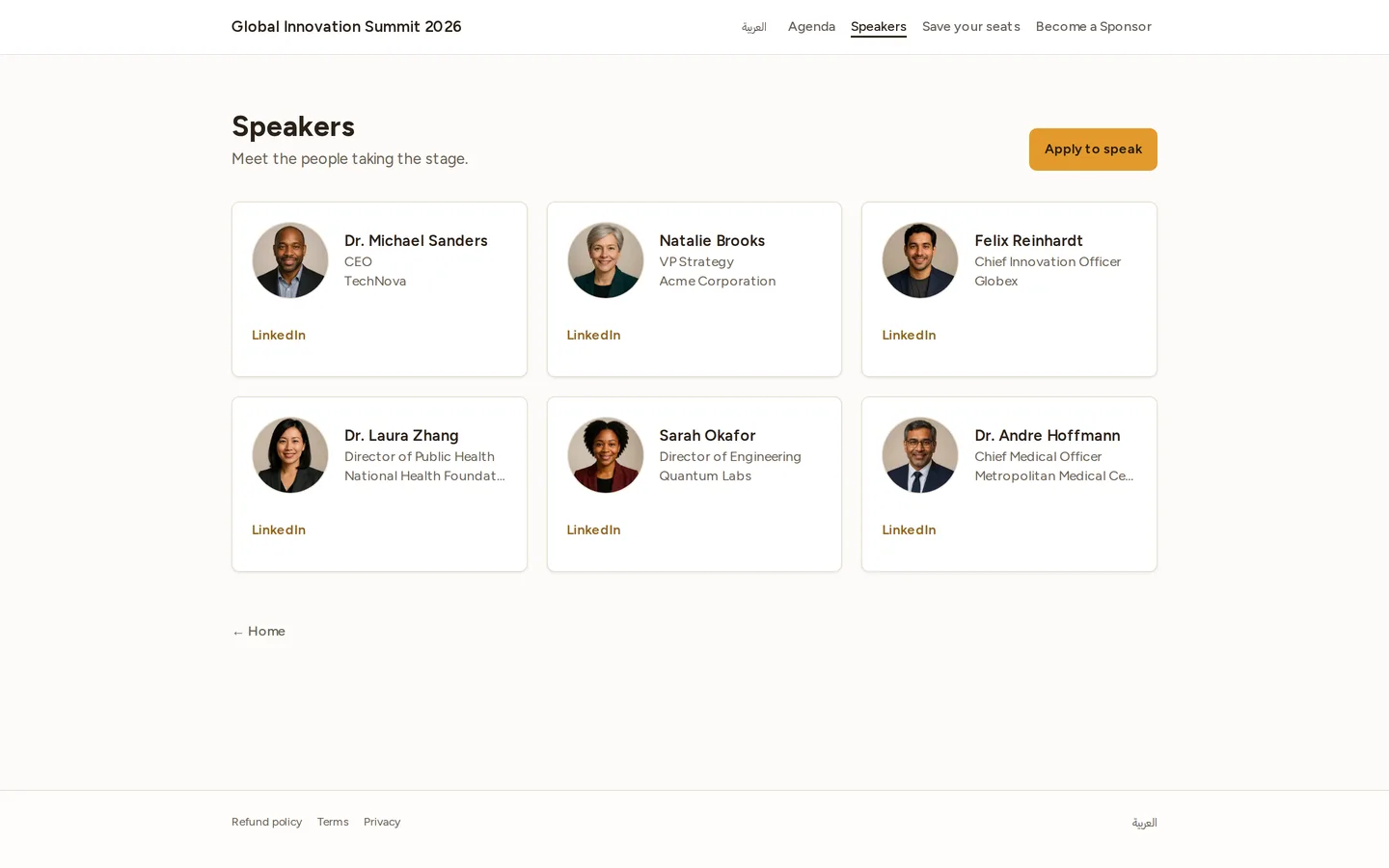
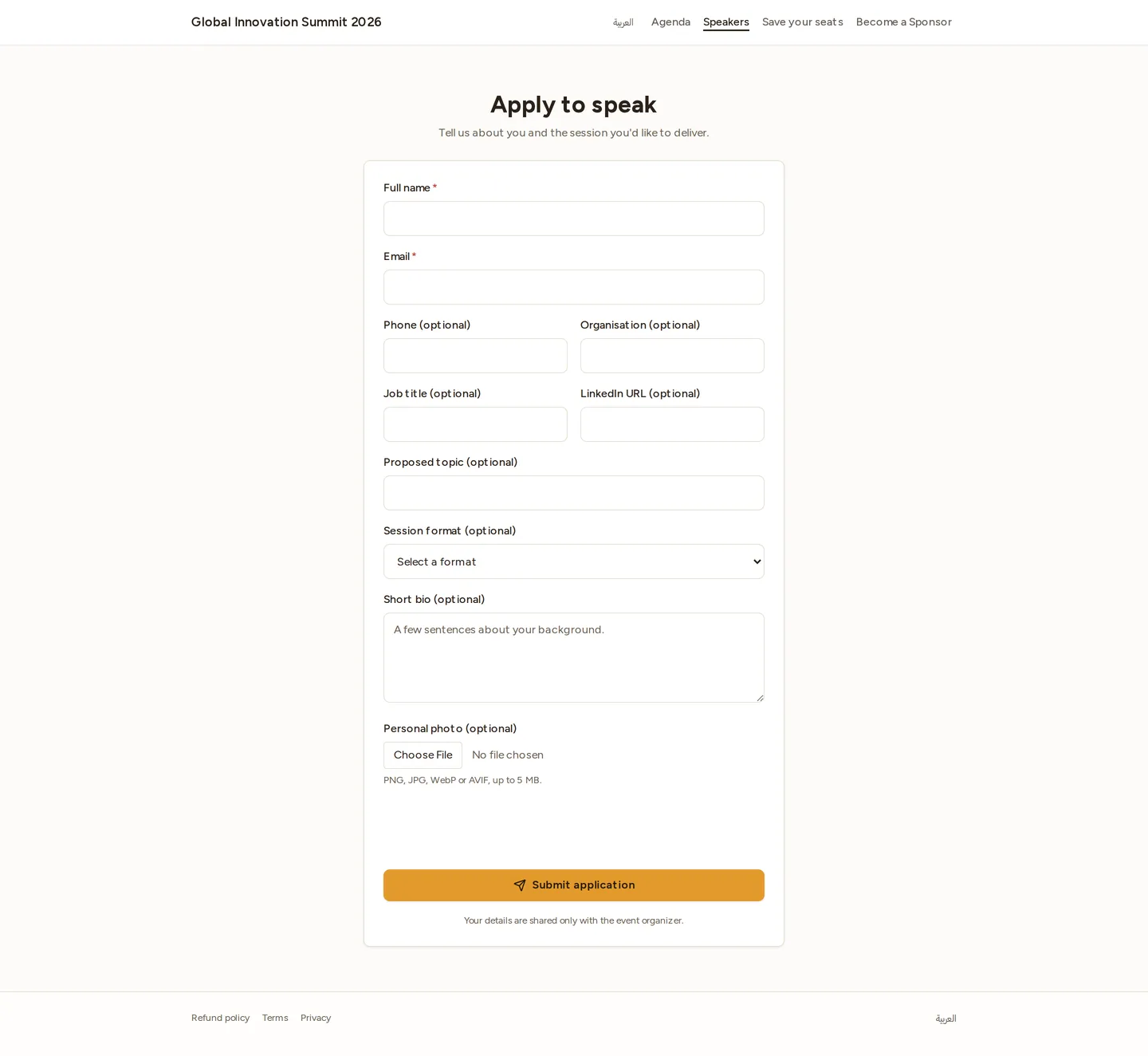
People apply at /e/<your-event-slug>/speakers/apply. The form collects:
- Full name, email (required)
- Phone, organisation, job title, LinkedIn (optional)
- Proposed topic and session format (keynote / panel / talk / workshop)
- A short bio
- An optional headshot (PNG, JPG, WebP, or AVIF, up to 5 MB)
It’s bilingual (English / Arabic, right-to-left aware) and protected against spam (hidden honeypot, rate limiting, and a CAPTCHA). On submit the applicant sees a thank-you message and gets a confirmation email.
The page is live while the event’s Call for Speakers window is open; outside that window it shows a friendly “applications are closed” message. When the window is open, an Apply to speak button also appears on the public speakers page.
Opening the window: the Call for Speakers window is configured per event. If the apply page shows as closed and you’d like to start collecting applications, contact your Novex administrator to open it.
Reviewing applications
Open the event → Website → Speaker applications (or jump straight to the queue from the Website settings page).
The queue lists pending applications first, then a reviewed history. Each pending card shows the applicant’s details, proposed topic, and a link to view their headshot.
Approve
Click Approve on a pending application. In one step, Novex:
- Creates a Speaker record from the application (name, title, organisation, bio, LinkedIn, and the headshot — copied into the speaker’s photo).
- Adds them to this event as a Confirmed speaker.
- Publishes them to the public speakers page and the Command Center speakers card.
- Sends the applicant an “approved” email.
Approving is idempotent — clicking twice won’t create a duplicate speaker.
Decline
Click Decline, optionally add a reason, and submit. The application is marked rejected and the applicant is sent a decline email. (The reason is kept on the record for your team; share it with the applicant as you see fit.)
Applicant emails
Applicants are kept in the loop by email automatically — they don’t need a Novex account:
| When | |
|---|---|
| They submit | “We received your speaker application” |
| You approve | “Your speaker application was approved” |
| You decline | “Update on your speaker application” (with your reason, if you added one) |
Emails are sent in your workspace’s default language (English or Arabic).
Who can review
Viewing the queue needs the microsite view permission; approving or declining needs the events write permission (the same one that governs adding speakers). See Team & roles.
Related
- Speakers — managing your speaker records and logistics.
- Publishing a website — make the public site (and the speakers page) live.