Vendors
The vendor directory is your supplier list — the companies you buy services from, and the counterparty your purchase orders are raised against (distinct from the vendor invoices they later send you).
The list
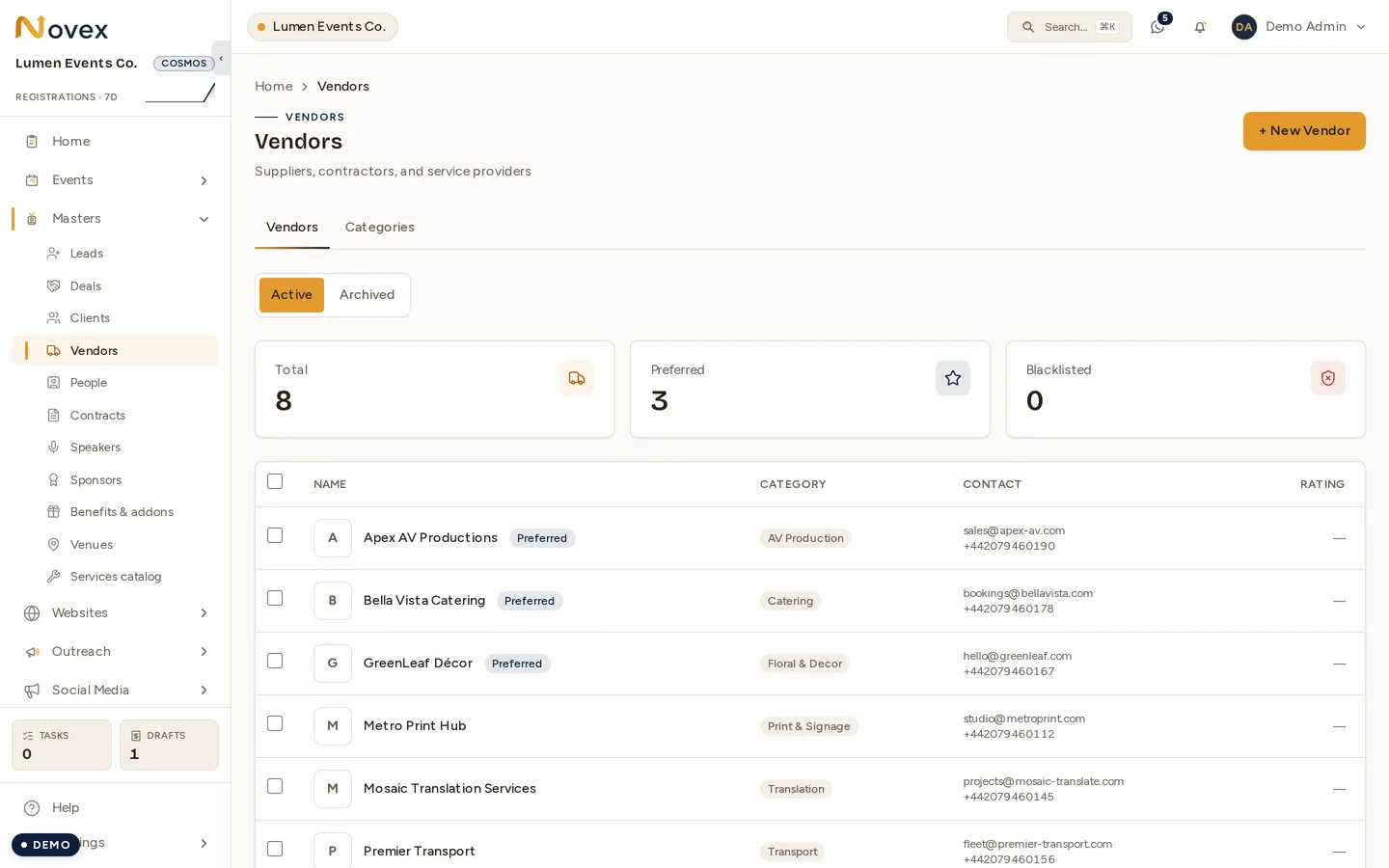
The directory opens with three summary cards — Total, Preferred, and Blacklisted — followed by the vendor list.
- On desktop, vendors appear in a table: name (with a logo tile plus Preferred / Blacklisted badges), category, contact, and star rating.
- On mobile, the same vendors render as cards.
- The list is paginated at 50 per page, and archived vendors are hidden.
- If you can archive, select multiple rows (or use select-all) to bulk archive in one action.
Add a vendor
- Click New vendor.
- Fill the core fields:
- Vendor name (required)
- Category (required)
- Email, Phone, City
- Complete the Legal fieldset:
- VAT number, plus a VAT document
- CR number, plus a CR document
- Each document slot accepts a single PDF, JPG, or PNG up to 10 MB.
- Add Bank Details: bank name, SWIFT, account number, IBAN.
- Tick Preferred vendor if this is a go-to supplier.
- Save.
You can also upload a vendor logo, so the directory shows real logos instead of placeholder tiles.
Vendor detail
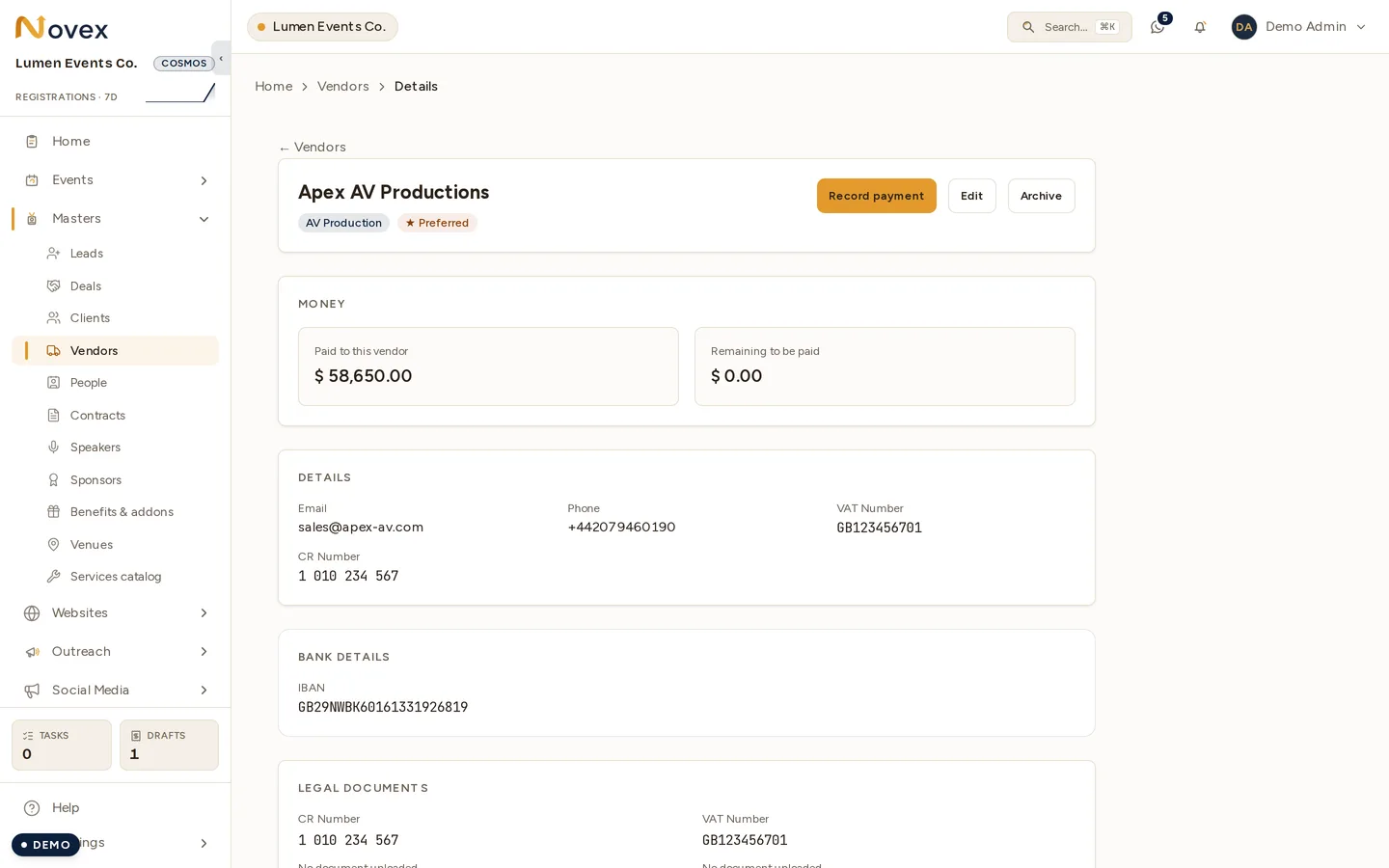
The detail page header shows the vendor name, category, Preferred / Blacklisted / Archived badges, the star rating, and Edit / Archive / Restore actions. Below the header:
- Details — the core profile and bank information.
- Legal documents — read-only links to the CR and VAT files, opened through a tenant-gated file proxy.
- Vendor documents — an uploader with four slots: CR, VAT, National address, and Bank account. Each can be uploaded or replaced.
- Purchase Orders — up to 10 linked POs for quick reference.
Categories
Each vendor carries one primary category:
- AV Production
- Stage & Lighting
- Catering
- Transport
- Print & Signage
- Floral & Decor
- Entertainment
- Videography
- Photography
- Security
- Hospitality
- Staffing
- IT & Network
- Furniture
- Gifting
- Translation
- Media Agency
- Insurance
- Legal
- Other
Vendor users
A vendor-portal access page lets you invite or revoke vendor-side users, so suppliers can collaborate on the work you assign them.
Archiving
There is no hard delete. Vendors are archived only, which keeps historical purchase orders and invoices intact. Restore brings an archived vendor back into the active directory.
Permissions
| Action | Permission |
|---|---|
| View vendors | vendors.read |
| Create / edit vendors | vendors.write |
| Archive / restore + bulk archive | vendors.delete |
| Manage vendor-portal users | vendor.users.manage |