For speakers & sponsors
This page describes what an applicant goes through, so you know what to expect when you point people at your event’s website. Applicants never need a Novex account — the whole flow is by link and email.
Applying to speak
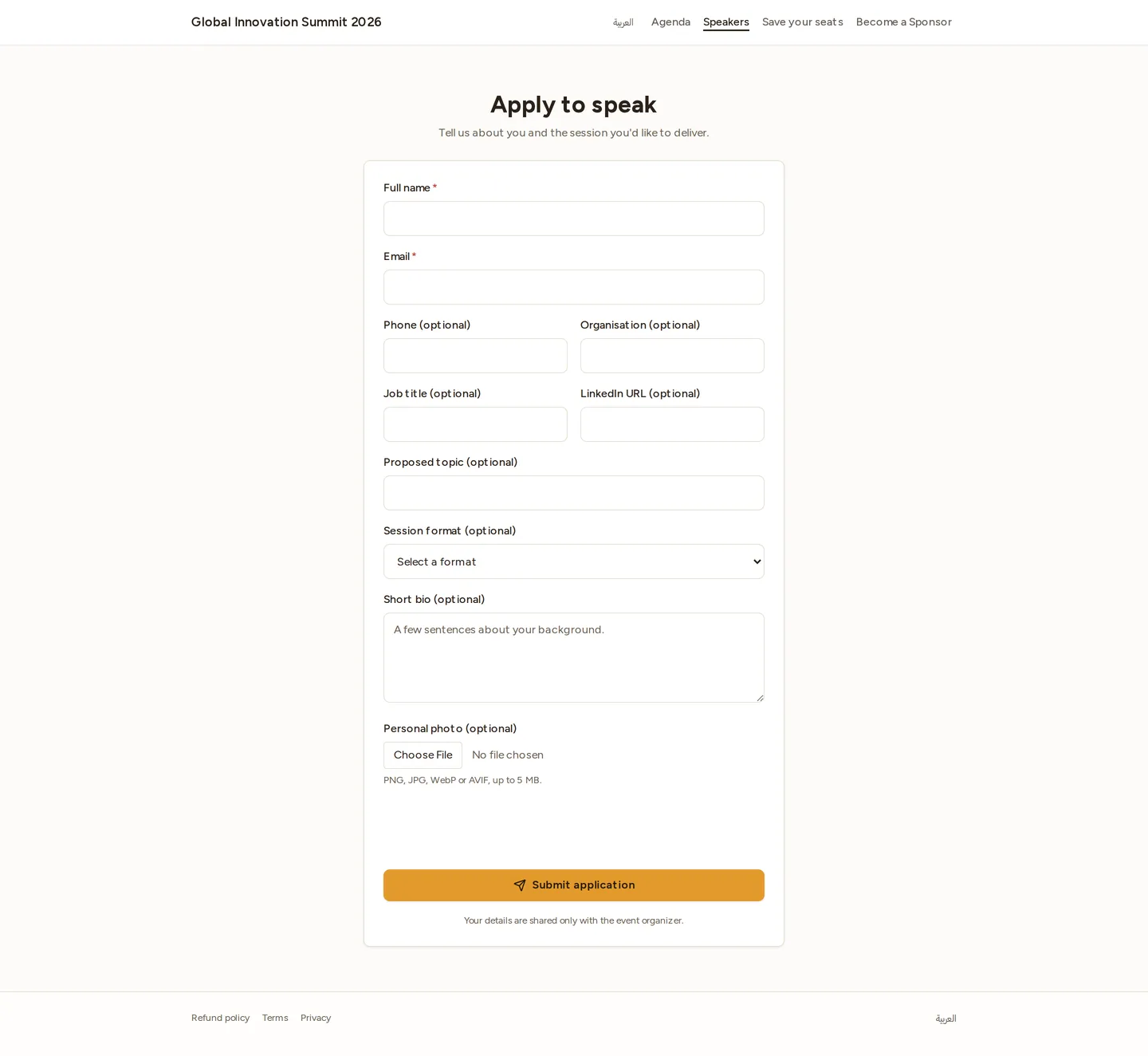
- They open the event’s Apply to speak link
(
/e/<event-slug>/speakers/apply), often from the Apply to speak button on the public speakers page. - They fill in their details — name, email, organisation, proposed topic and format, a short bio, and an optional headshot.
- On submit they see a thank-you message and receive a “we received your application” email.
- When the organiser reviews it, they get a second email — approved (they’re now a confirmed speaker and appear on the public site) or a polite decline (with the organiser’s note, if one was added).
Applying to sponsor
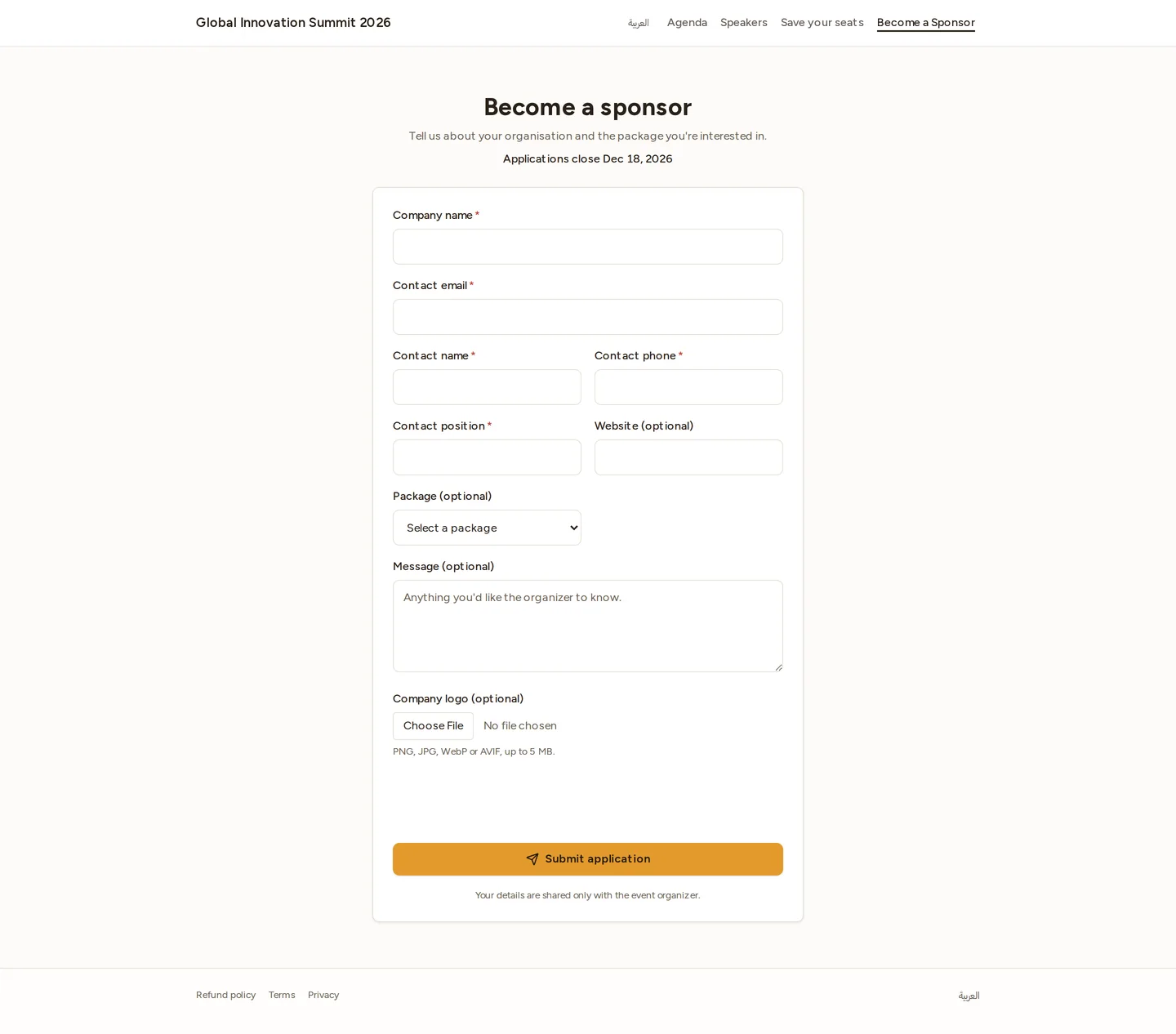
- They open the event’s Sponsorship page (
/e/<event-slug>/sponsor) and browse the packages — names, prices, benefits, and any remaining slots. - They pick a package and click Apply for this tier (or Become a sponsor for a general enquiry).
- They fill in their company details and an optional logo, then submit and receive a “we received your application” email.
- After review they get an approved email (their logo now appears under its tier on the public sponsors page) or a decline email.
Good to know
- Bilingual: every public and apply page works in English and Arabic, with correct right-to-left layout.
- Privacy: an applicant’s details are shared only with the event organiser. Speakers and sponsors appear publicly only after they’re approved — pending applications are never shown.
- One application per email: applying twice with the same email for the same event is detected, so there are no duplicate submissions.
- Applications have an open/close window: if the apply page shows “applications are closed”, the organiser hasn’t opened (or has closed) the window for that event.
Last updated on