Event documents
Every event has its own document library so the files that matter — signed contracts, venue floor plans, run sheets, insurance certificates, supplier quotes — live with the event instead of scattered across email and drives.
When to use this
Attach any file the team needs during planning or on the day. The library is scoped to a single event, so opening the event gives you everything related to it in one place.
Where to find it
Open the event and click Documents in the event nav
(/t/<slug>/events/<id>/documents).
Step by step
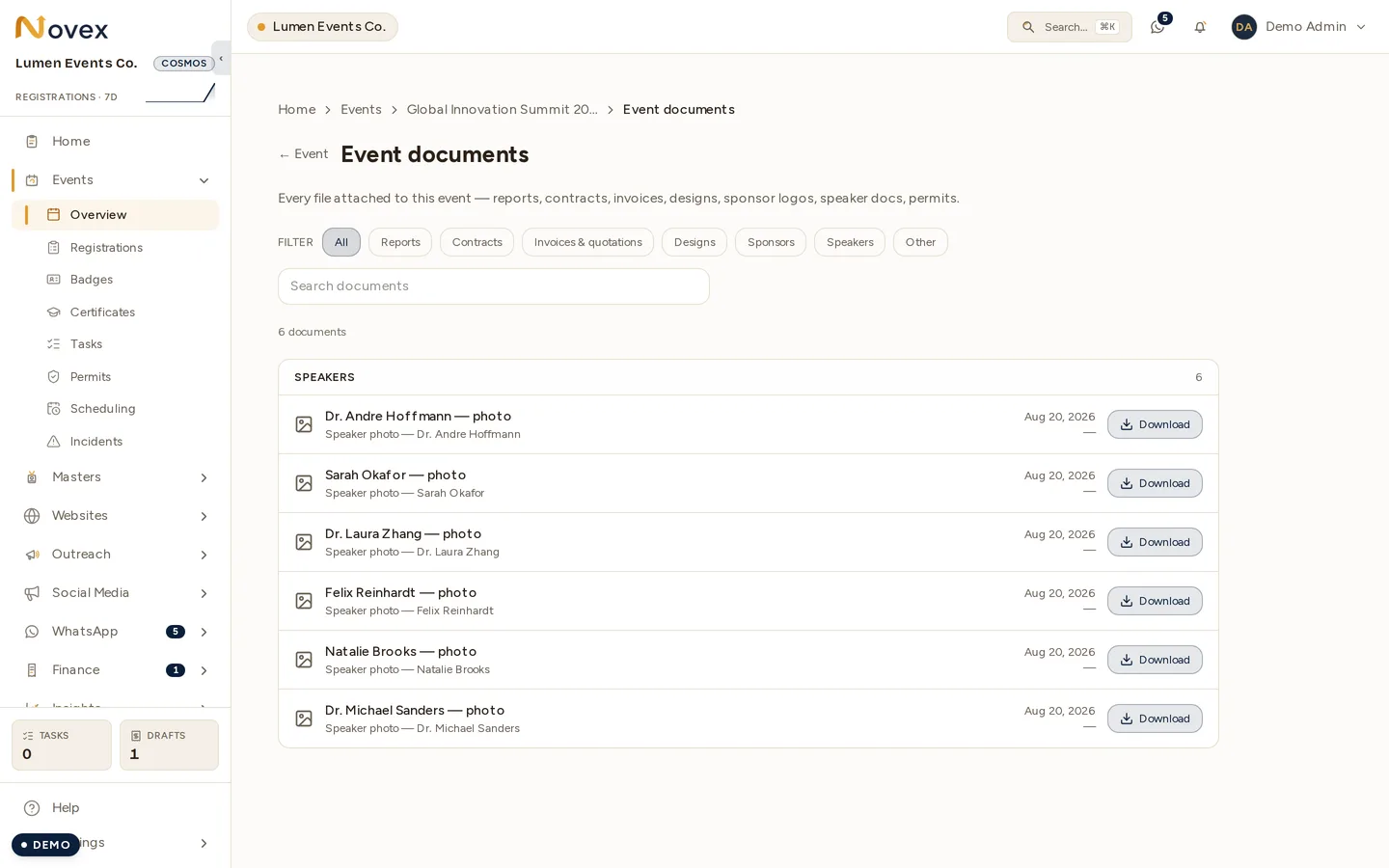
Files are grouped by category rather than by folder — the workspace above holds only speaker photos, so it shows one group.
- Open the event’s Documents tab.
- Click Upload and choose a file.
- Give it a clear name so teammates can find it later.
- Download or replace files as the event evolves.
How it relates to other document areas
- Event documents are tied to one event.
- The workspace-wide Documents area (with folders) is for files that aren’t event-specific — company policies, brand assets, master templates.
- Contracts generated from the CRM live in the Contracts module; you can still attach the signed PDF to the event for on-the-day reference.
Tips & limits
- Use descriptive names and a consistent convention (e.g.
2026-floorplan-v3) so the latest version is obvious. - Documents respect your workspace’s access controls — see Team & roles.
Next
Last updated on