Staffing & shifts
Scheduling in Novex lets you build shifts for an event and assign staff to them, then track who actually turned up via clock-in and clock-out. It’s how your operations team turns a headcount of crew into a concrete roster.
When to use staffing & shifts
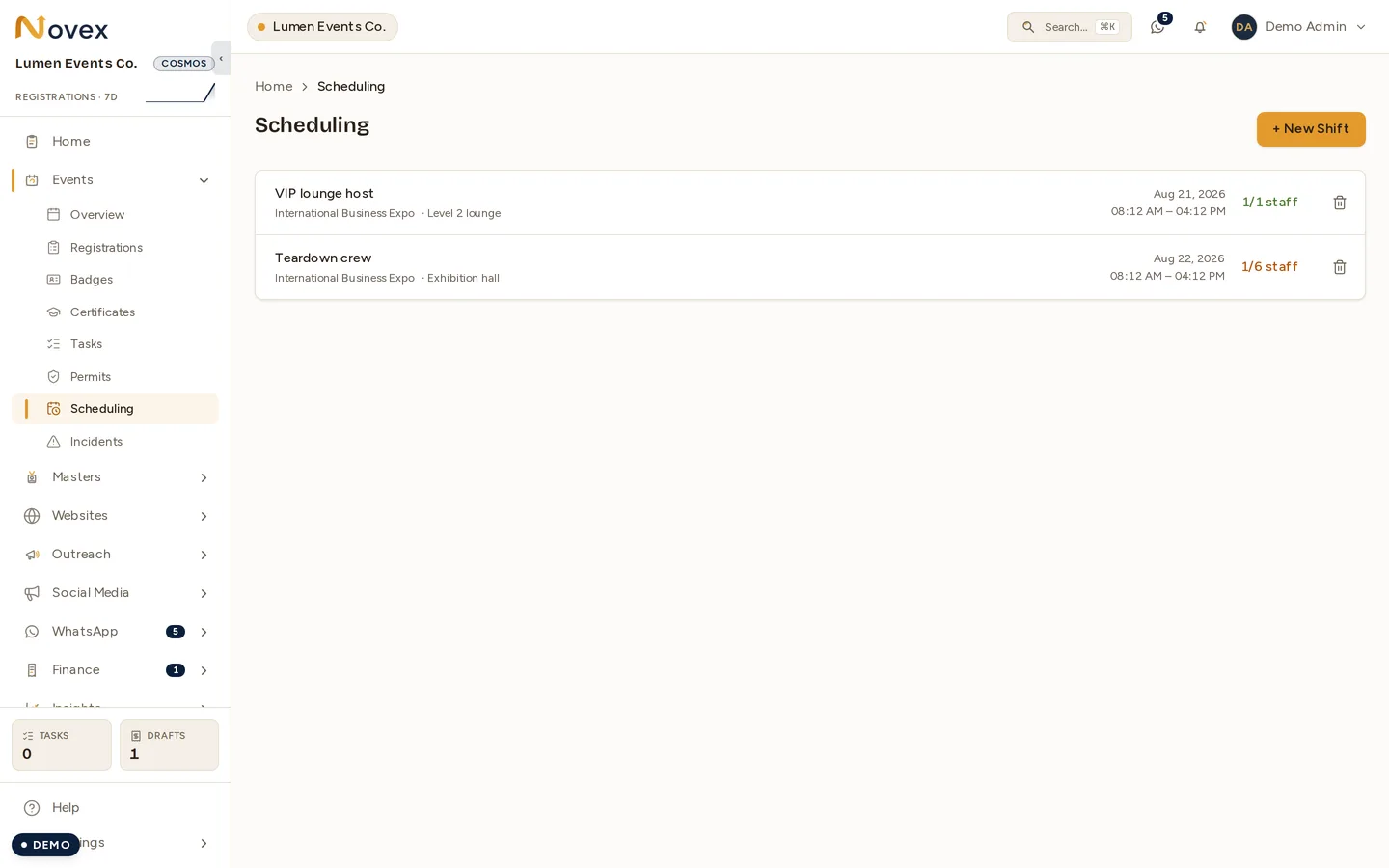
⚠️ The workspace-level /scheduling shows only what is still ahead, across
every event — two shifts here, out of the six that event holds. It is the
“what’s coming up” view, not the rota. For an event’s full rota, including
shifts that have already run, open the event and use
its own Scheduling screen.
Use scheduling for any event that needs people on the ground — registration desk staff, ushers, AV crew, security, hospitality hosts. Build shifts in advance so everyone knows when and where to report, and use clock-in/out to confirm attendance and feed timesheets.
Build a shift
- Open Scheduling and choose + New shift.
- Select the event the shift belongs to.
- Set the start and end times (and the role or area, e.g. “Registration desk”).
- Save the shift.
- Open the shift and assign staff — one or more team members per shift.
- Repeat for each role and time block the event needs.
Upcoming shifts are listed by start time so the next thing to staff is always on top.
Clock-in / clock-out
On the day, assigned staff record their actual hours:
- A staff member clocks in when they arrive for their shift.
- They clock out when the shift ends.
- The recorded times show against the assignment, giving you a live view of who’s on site and an after-the-fact record for payroll or supplier reconciliation.
| Element | What it represents |
|---|---|
| Shift | A time block of work tied to an event |
| Assignment | A staff member placed on a shift |
| Clock-in / out | Actual start/end times recorded on the day |
Tips & limits
- Build shifts around the event’s peaks — registration, breaks, teardown — not a flat all-day block.
- Assign a clear lead per shift so on-site escalation has an owner.
- Cross-check clocked hours against assignments before approving any staffing invoice.
- Exact clock-in controls may vary by device and plan.