Sponsorship
The sponsorship workflow turns your website into a sales page. You author a catalogue of sponsorship packages, the public site shows them alongside your confirmed sponsors, companies apply for a package, and your team approves them into confirmed sponsors.
Build the package catalogue
Open the event → Website → Sponsorship packages. Add a package for each tier you sell. For each one you set:
- Name (English / Arabic) — e.g. “Platinum”, “Gold”.
- Maps to sponsor tier — links the package to a sponsor tier so an approved sponsor lands in the right group on your sponsors list and Command Center.
- Price — a fixed figure, a multiple of the event’s base price, or none at all. The currency is set once for the whole event on the rate card.
- Benefits — one row per benefit, with an optional value (
10,6×3 m), which is what lets the same benefit line up across packages in the public comparison table. - Total slots (optional) — surface limited availability.
- Published — uncheck to keep a draft package off the public page.
Reorder packages with Move up / Move down; the public page follows that order. Delete a package any time — existing applications keep their record.
See Package builder for the rate card, the benefits builder and how the comparison table is assembled.
The public sponsorship page
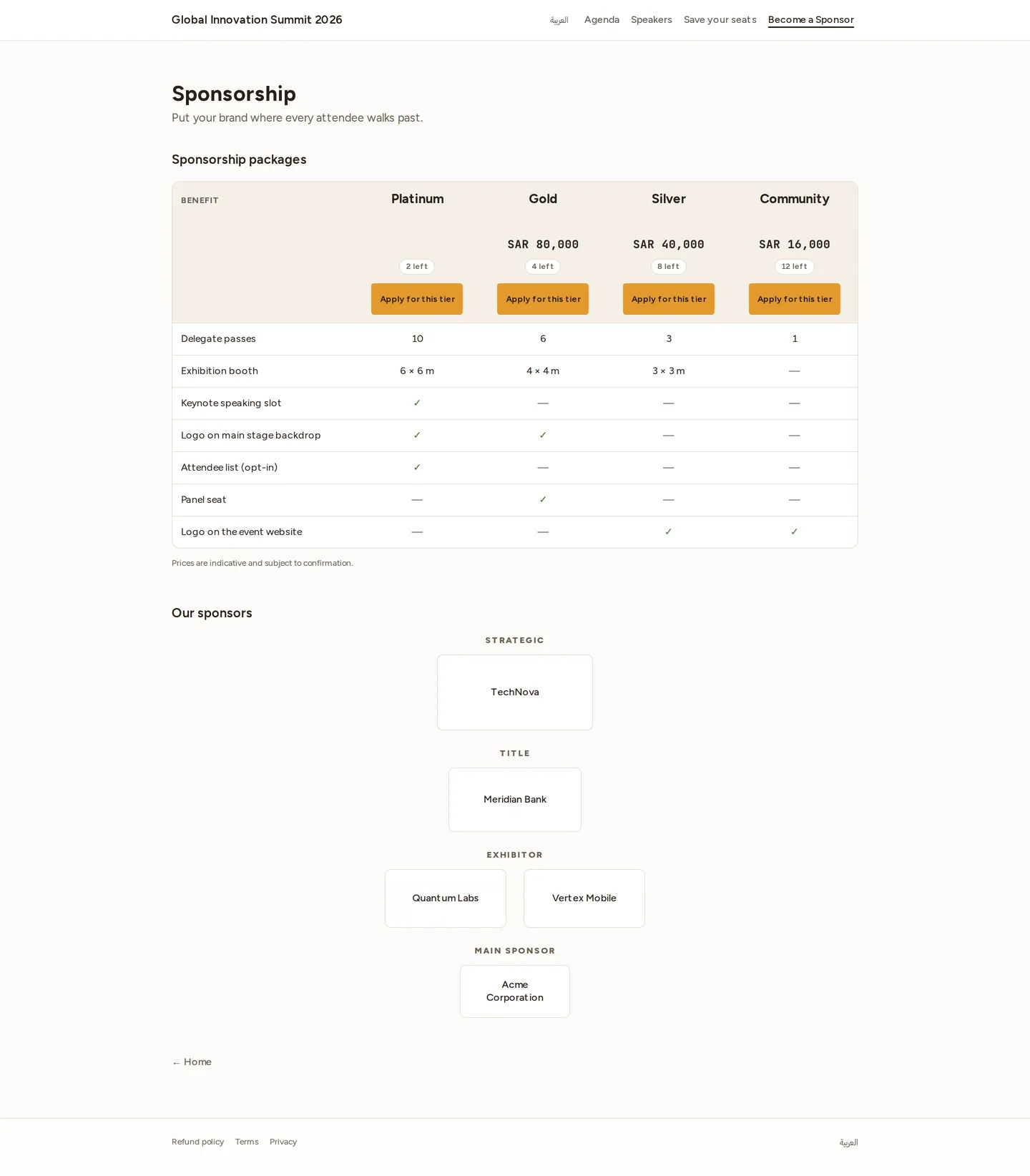
Visitors see your packages at /e/<your-event-slug>/sponsor: each published
package with its price, benefits, and remaining slots, plus a comparison
table assembled from what the packages list, and your confirmed sponsors
grouped by tier (logos only — pending applicants never show).
When the event’s Sponsorship window is open, each package gets an Apply for this tier button and a Become a sponsor call-to-action.
Opening the window: the Sponsorship window is configured per event. If the sponsor pages show as closed and you’d like to start collecting applications, contact your Novex administrator to open it.
The application form
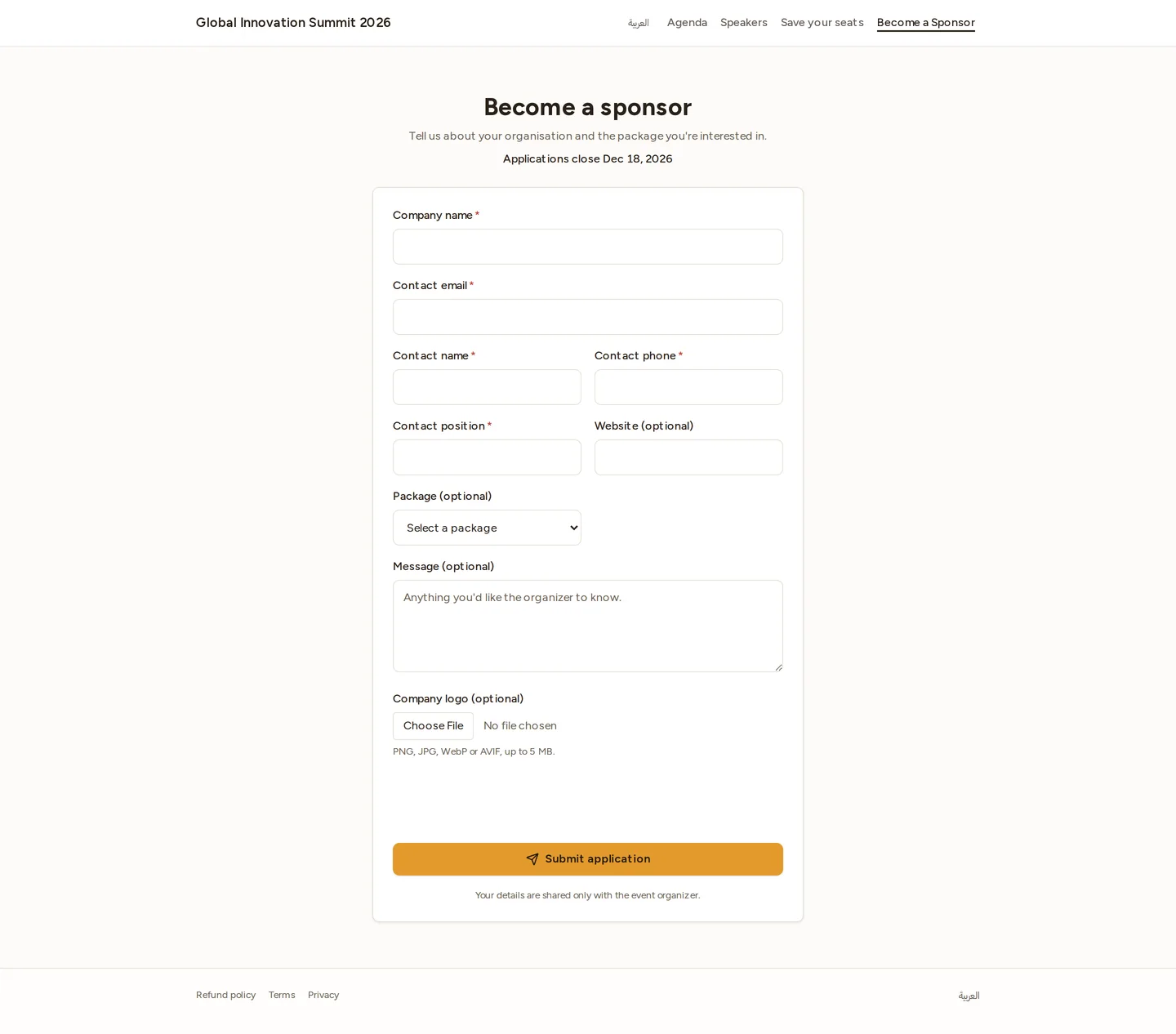
Companies apply at /e/<your-event-slug>/sponsor/apply. The form collects:
- Company name and contact email (required)
- Contact name, phone, website (optional)
- The package they’re interested in (pre-selected if they came from a package)
- A message
- An optional company logo (PNG, JPG, WebP, or AVIF, up to 5 MB)
Like the speaker form, it’s bilingual and spam-protected, and the applicant gets a confirmation email on submit.
Reviewing applications
Open the event → Website → Sponsor applications. Pending applications appear first, then the reviewed history.
Approve
Click Approve. Novex then:
- Creates a Confirmed sponsor for the event, mapped to the package’s tier (price, currency, and benefits carried over).
- Copies the uploaded logo into the sponsor’s logo.
- Publishes the logo to the public sponsorship page (under its tier) and the Command Center sponsors card.
- Sends the applicant an “approved” email.
Approving is idempotent. If the chosen package was deleted before approval, Novex asks you to re-check the package rather than guessing a tier.
Decline
Click Decline, optionally add a reason, and submit. The application is marked rejected and the applicant is emailed.
Applicant emails
| When | |
|---|---|
| They submit | “We received your sponsorship application” |
| You approve | “Your sponsorship application was approved” |
| You decline | “Update on your sponsorship application” (with your reason, if added) |
Who can review
Viewing the queue needs the microsite view permission; authoring packages and approving or declining applications needs the sponsors write permission. See Team & roles.
Related
- Sponsors & exhibitors — managing confirmed sponsors, contracts, and booths.
- Publishing a website — make the public site live.