Staff QR check-in
A streamlined check-in screen for a staffed desk with a hardware scanner. Plug in a USB or Bluetooth QR/barcode scanner, point it at each attendee’s eBadge QR, and Novex checks them in and shows a running count — no clicking required.
Where to find it
/t/<slug>/registrations/check-in — needs the check-in permission.
How it works
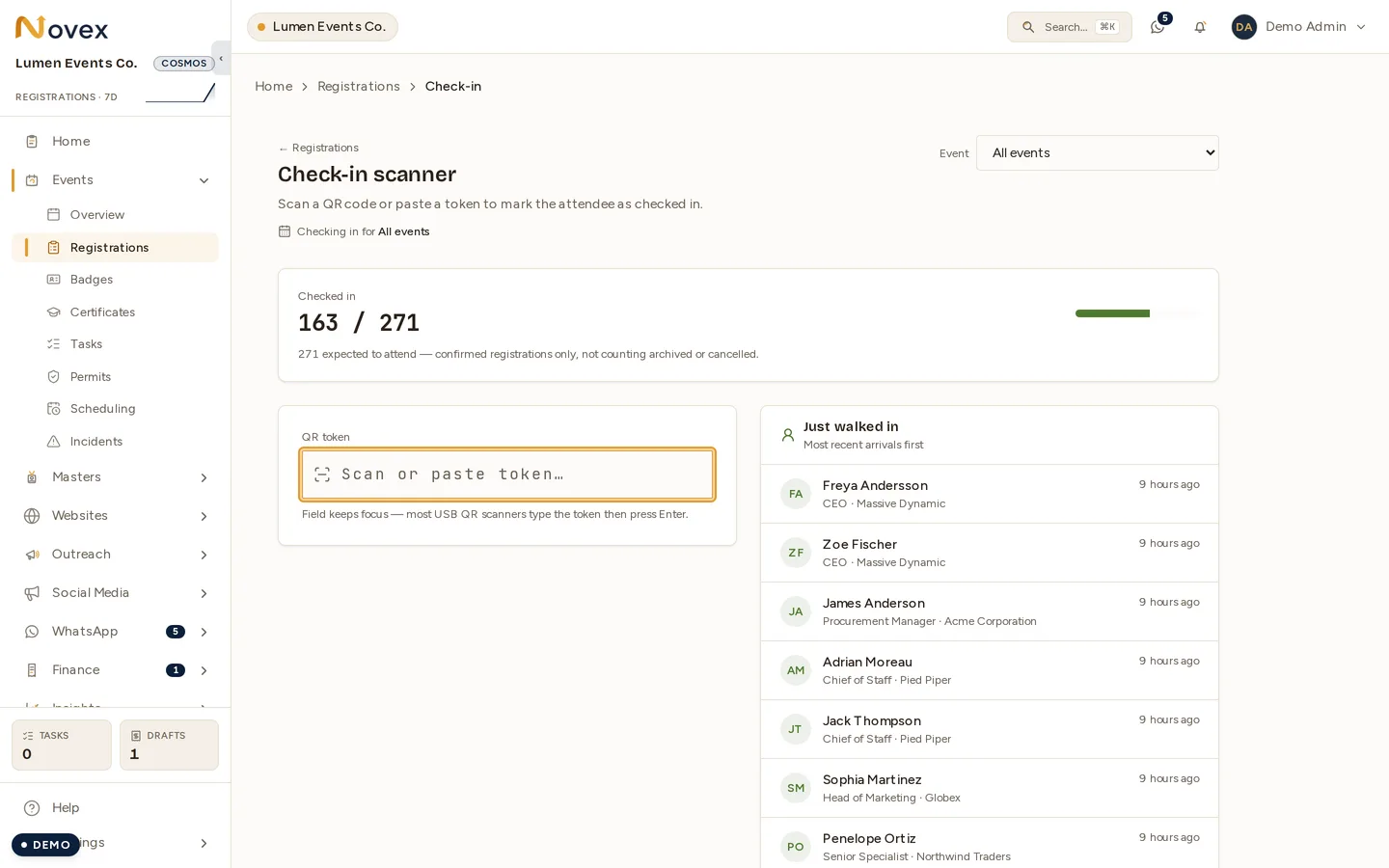
The token field keeps focus — most USB QR scanners type the token and press Enter, so the desk needs no mouse. The Just walked in list on the right is the running confirmation that scans are landing.
- Connect a hardware QR/barcode scanner (the kind that types the scanned value and presses Enter). The input field stays focused automatically.
- Scan an attendee’s badge QR. Each scan accepts a raw token or a full badge URL.
- Novex checks the attendee in and shows the result instantly.
A progress bar at the top tracks attended vs. total across the event so you can see how the door is going at a glance.
Scan results
Every scan is logged in a live history (most recent first):
| Result | Meaning |
|---|---|
| Success | Checked in — shows the attendee’s name, company and job title. |
| Already checked in | This badge was already scanned. |
| Not found | The code doesn’t match a registration for this event. |
| Error | A network problem — try the scan again. |
Kiosk vs. staff check-in
| Kiosk | Staff QR check-in | |
|---|---|---|
| Input | Device camera | Hardware USB/Bluetooth scanner |
| Audience | Self-service / front-of-house | Staffed desk |
| Walk-ins | Register new attendees | No — check-in only |
| Badge printing | Yes (transparent) | No |
| Offline | Yes (queues + syncs) | Needs a connection |
Use the kiosk when attendees serve themselves or you need to register walk-ins and print on the spot; use staff QR check-in for a fast, scanner- driven desk that only needs to mark people present.
Tips
- Keep the tab focused — the scanner types into the on-screen field, so don’t click away mid-shift.
- Tokens are case-sensitive — let the scanner enter the value rather than retyping it by hand.
- Open it on multiple desks at once for a big door; the progress bar is shared, so every station sees the same live total.
Next
- eBadge PDF & QR — the QR codes you’re scanning.
- Kiosk check-in — self-service alternative.