Badge designer
The badge designer is a visual, drag-and-drop editor for attendee badges. You build a reusable template — choose a paper size, position the name, job title, company, QR code, logo and event name, and pick fonts — then Novex uses it everywhere a badge is produced: the emailed eBadge PDF, the kiosk walk-in print, and the bulk pre-print run.
Where to find it
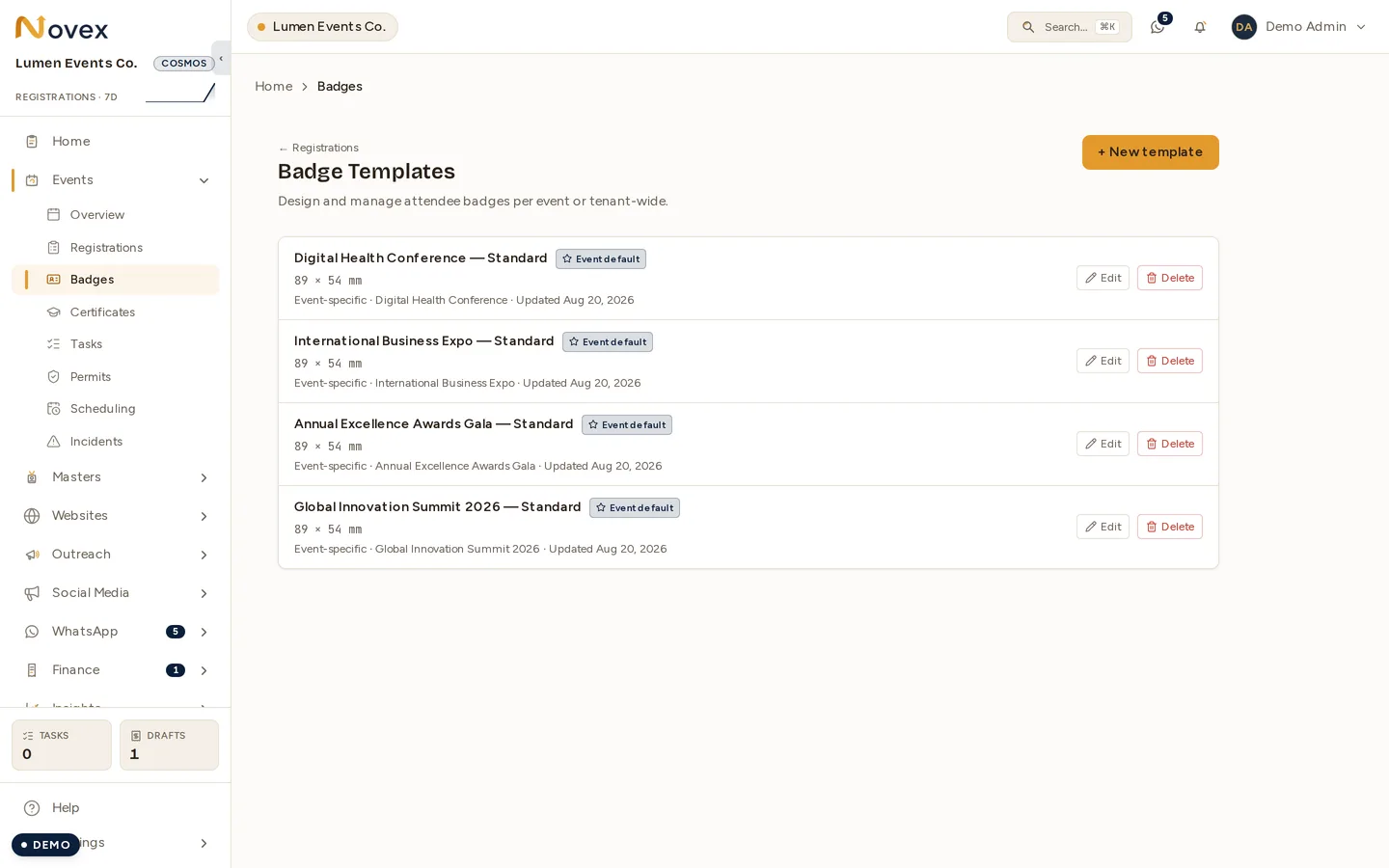
/t/<slug>/registrations/badges — the badge templates list. Open a template
to edit it and use the designer, or click New to create one.
The Badges link on an event (
/events/<id>/badges/designer) is a shortcut: it jumps straight to that event’s default template, or to the templates list if none exists yet.
Templates, sizes and scope
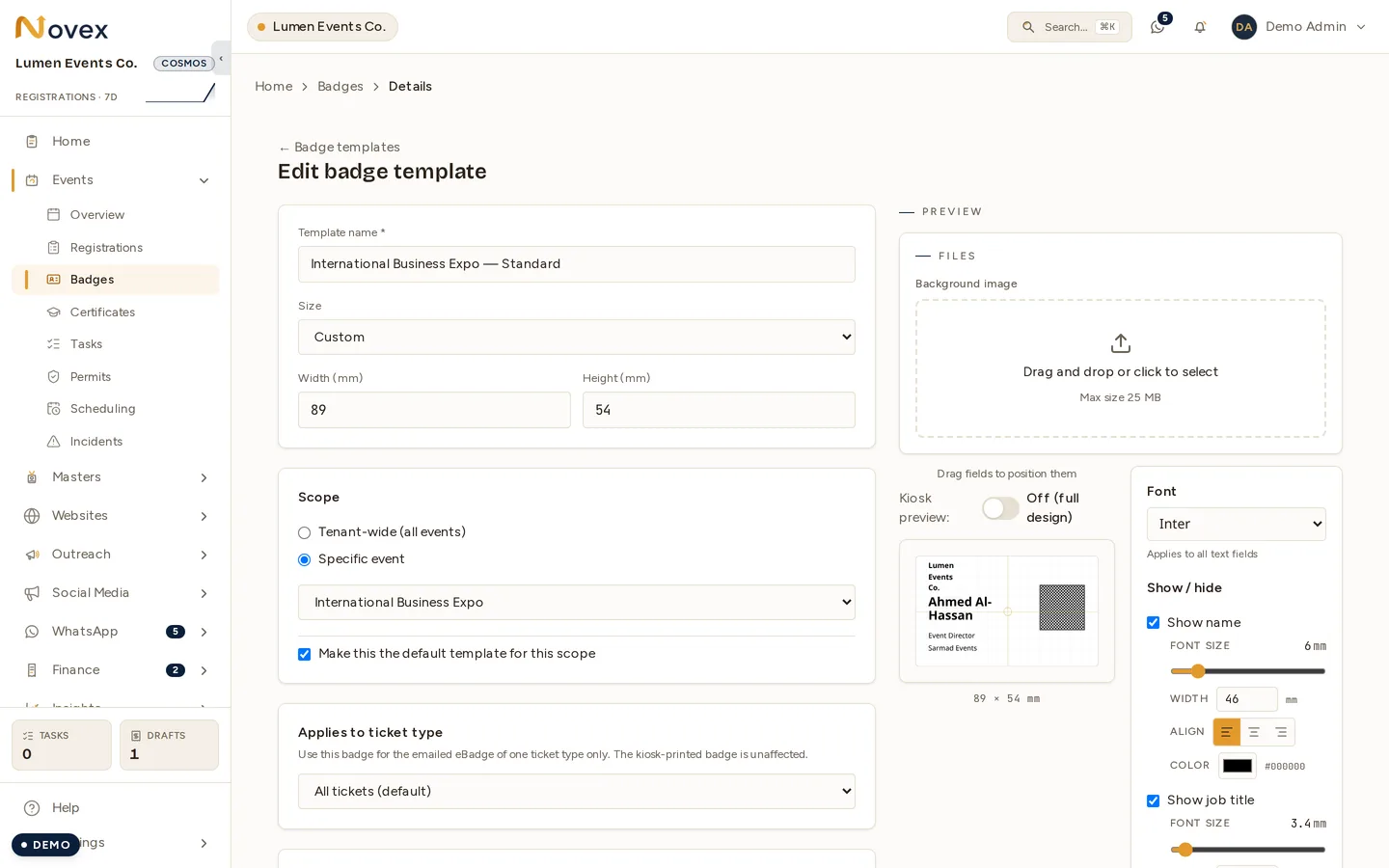
Each template has:
-
Name — how you’ll recognise it in the list.
-
Size — a preset or a custom size in millimetres:
Preset Size (mm) B3 353 × 500 A5 148 × 210 A6 105 × 148 B6 125 × 176 B7 (default) 88 × 125 Custom any 30–500 mm per side -
Scope — tenant-wide (available to every event) or event-scoped (tied to one event). Set one template per scope as the default with the Make default star; that’s the one badges fall back to automatically.
-
Background color — a single
#RRGGBBfill behind the badge (white if left empty). Set it with the color swatch or by typing a hex value.
Building the layout
- Open a template (or create a new one) at
/t/<slug>/registrations/badges. - The right-hand designer shows the badge canvas at true proportions.
- Tick the fields you want to appear. The available fields are: Name, Job title, Company, QR code, Logo, and Event name.
- Drag any visible field to position it. Positions are stored in millimetres, so the layout prints exactly as you arrange it.
- Tune each field (see below).
- Click Save layout.
Per-field controls
For each text field (name, job title, company, event name):
- Font size — a slider from 2 mm to 30 mm.
- Field width — an optional fixed width in millimetres; leave it empty to let text wrap automatically.
- Alignment — left, center or right. Center/right anchor the field to the badge (or to the width box), which locks horizontal dragging so it stays aligned.
For the QR code:
- Size — 10 mm to 80 mm.
- Alignment — horizontal (left/center/right) and vertical (top/middle/bottom). Setting an alignment pins the QR to that position.
For the logo:
- Size — 5 mm to 80 mm.
Fonts
A single font family applies to all text on the badge. Choose from Inter (default), Arial, Helvetica, Roboto, Open Sans, Tajawal, Cairo, or IBM Plex Sans Arabic. The Arabic-capable families (Tajawal, Cairo, IBM Plex Sans Arabic) are the right choice for Arabic names.
Text color
All badge text prints in black by design, for maximum legibility and reliable contrast against any background or lanyard. There is no per-field text color — the one color control is the badge background.
Background image
On an existing template you can upload a background image (a designed artwork with your branding, sponsor band, etc.). Use the uploader on the template edit page; it accepts image files. Position your text and QR fields in the clear areas of the artwork. The background image is omitted automatically on transparent kiosk prints (see below).
Kiosk preview toggle
The designer has a Kiosk preview switch:
- Off — shows the full design (background image, logo, event name) as a positioning guide.
- On — shows what actually prints at the kiosk: a transparent badge with the background, logo and event name removed, leaving only name, job title, company and the QR code. This is preview-only — it doesn’t change which fields are saved on the template.
Tips & limits
- Set a sensible default per scope so badges always resolve even if someone forgets to pick a template.
- Custom sizes are clamped to 30–500 mm per side.
- PDF fonts: the emailed PDF renders text in a native font for portability; the live HTML badge uses your chosen family exactly. Keep that in mind if a specific typeface is critical to your brand.
- Changing a template updates every future badge produced from it — re-print or re-send if you change a template after badges have gone out.
Next
- eBadge PDF & QR — the emailed badge + bulk pre-print.
- Kiosk check-in — print on-site at the door.