Managing registrations
The Registrations area is the master attendee list for an event. Everyone who signs up — through the hosted page, the embedded form, or a bulk import — lands here, where you can review, edit, import, and export.
When to use this
- Review who has registered and edit their details.
- Import an existing attendee list (from a previous tool or a spreadsheet).
- Export the list for reporting, name badges, or sharing with the client.
Where to find it
Open the event and click Registrations
(/t/<slug>/events/<id>/registrations), or the workspace-wide
Registrations nav entry.
Viewing & editing
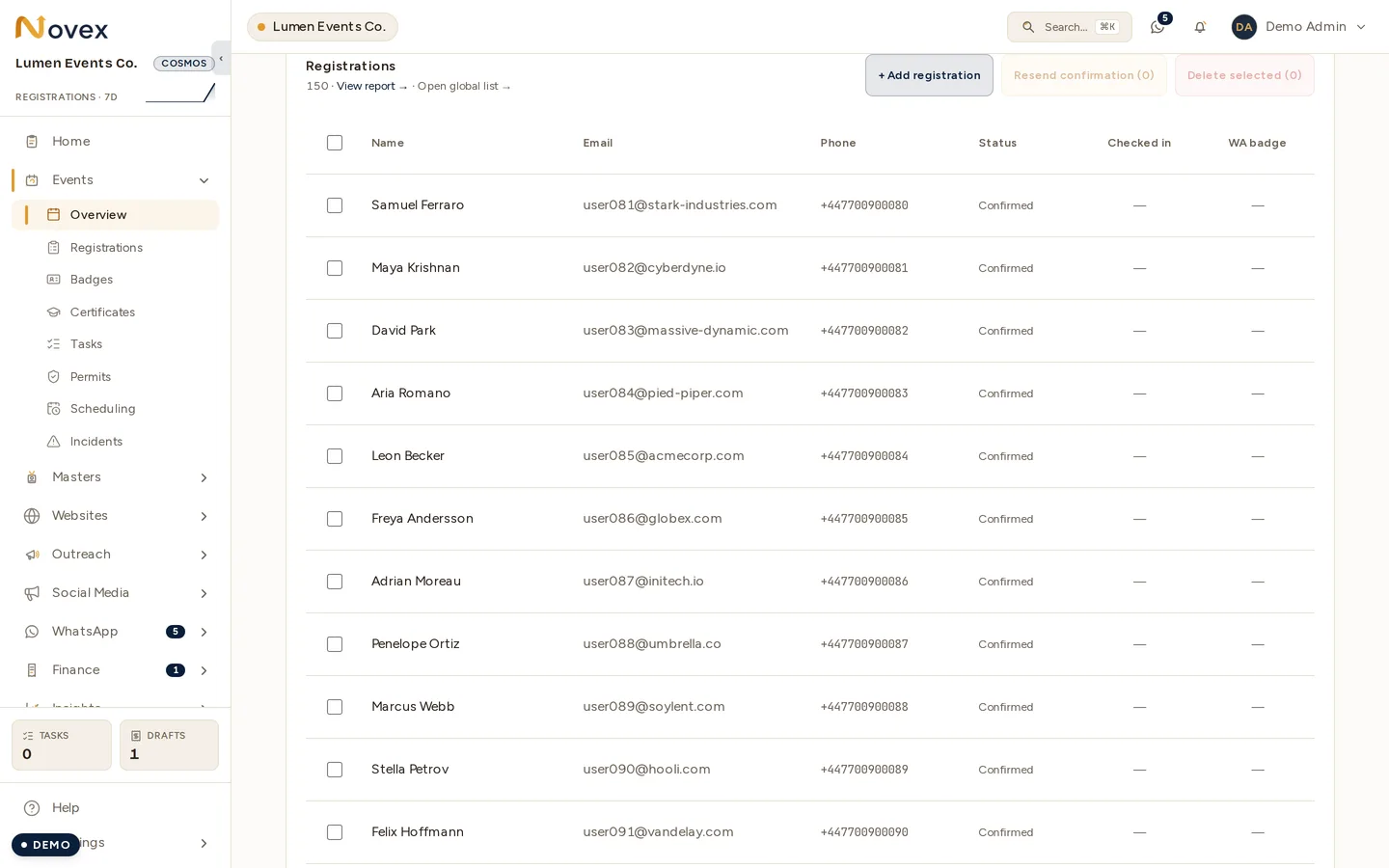
Click any row to open that registration in full.
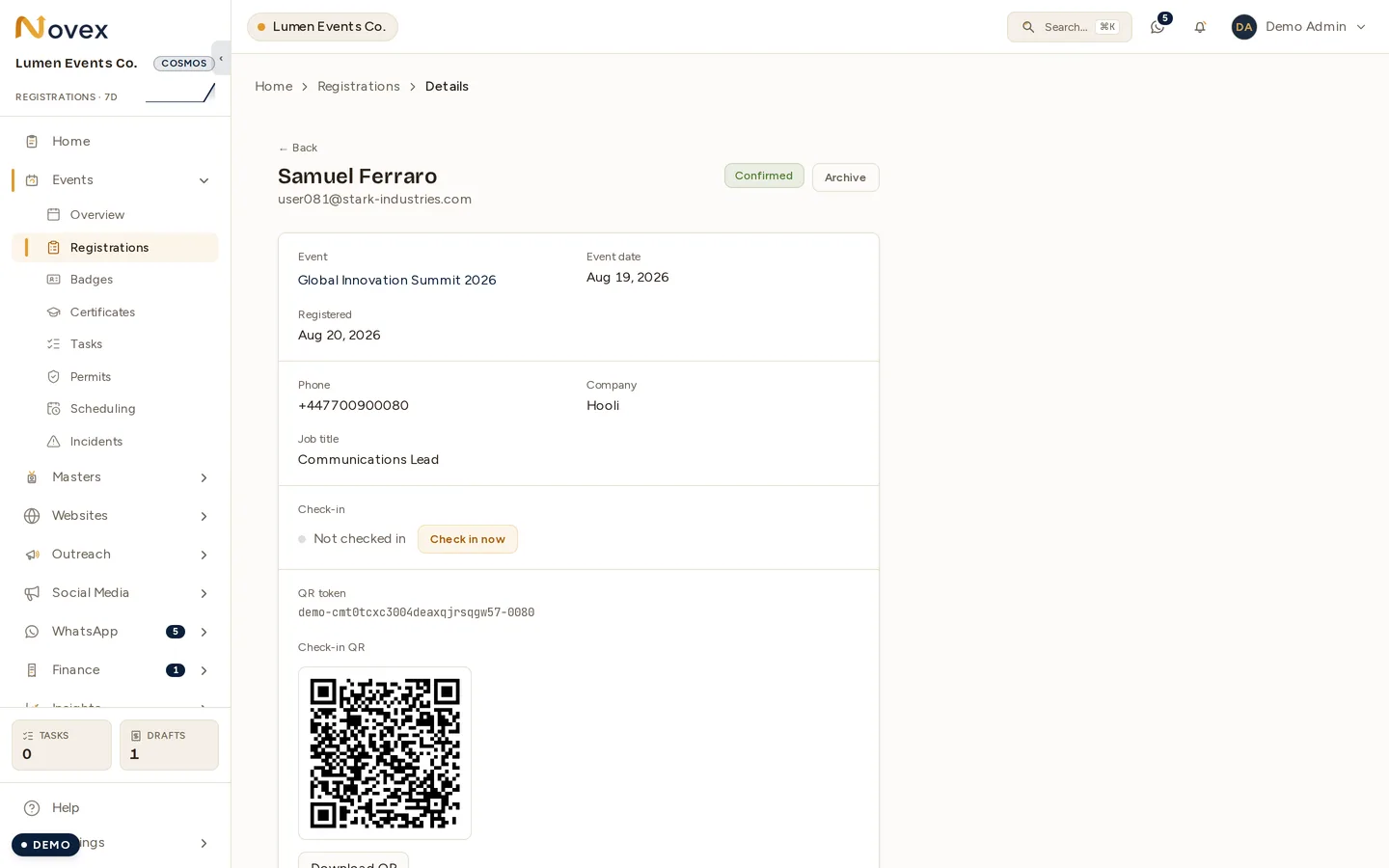
The detail view carries the whole record — including the QR token, the check-in QR, and Form answers, which is what this person actually typed when they registered rather than what the linked person master holds today.
- Each row is one registrant. Open a row to see and edit their fields, or to manage their badge.
- Add a registration manually with + New registration for walk-ups or phone sign-ups.
Bulk import (CSV / XLSX)
For existing lists, import in bulk rather than typing each row:
- In Registrations, choose Import.
- Download the template — Novex provides both a CSV and an Excel (XLSX) template with the exact column headers the importer expects.
- Fill the template with your attendees.
- Upload the file. Novex validates it and runs the import as a bulk job.
- Review the result. If any rows fail validation, the job shows a per-row error list so you can fix just those rows and re-upload — valid rows are still imported.
Confirmation emails (batch send)
Send confirmation emails to registrants straight from the list, and track who has received one:
- Each row shows a Sent / Not sent status, so you can see at a glance who still needs a confirmation — useful after a bulk import, where rows arrive without an email having gone out.
- Select a batch of registrants (or filter to the “Not sent” ones) and use Send confirmation to email the whole selection in one action; Novex sends them as a background job and flips each row to Sent.
- Re-importing or adding walk-ups later won’t re-send to people already marked Sent — you only ever send to the batch you select.
Export
Export the current attendee list (for reporting or a printer) from the Export action. Use it to hand a clean list to a client or to drive an external name-badge run.
Tips & limits
- Use the provided template. The importer keys on the template’s column headers; renaming or reordering columns causes validation errors.
- Fix-and-retry is safe. Re-uploading after fixing failed rows won’t duplicate the rows that already imported successfully — address the errors the job reported.
- Large lists import as a background job; you can leave the page and check back on the result.