Floor plan
The floor plan editor lets you trace booth outlines directly on a venue image and assign each booth to a sponsor, an exhibitor or a customer. Sponsors then see their booth highlighted in the public attendee map; you see assignment progress on the Command Center.
Upload a layout
- Open the event, click Floor plan in the left nav.
- Click Upload layout and pick a PDF or image file (PDF is preferred for crisp text; PNG / JPG work for hand drawings or photos).
- Novex converts the first PDF page to PNG and shows it as the editor background. Maximum file size is 25 MB.
Mark booths
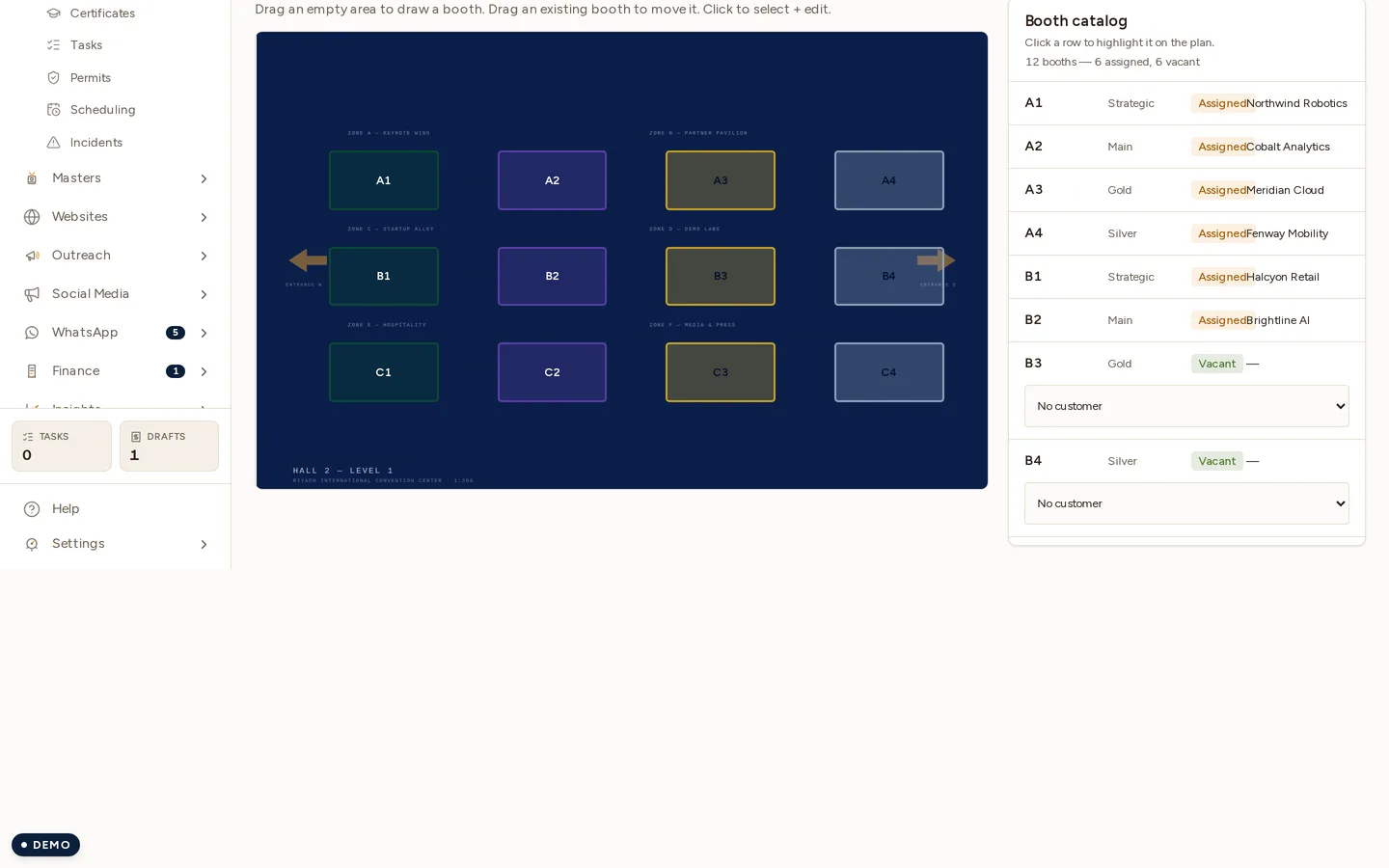
The Booth catalog on the right is the same set of booths as a list. Clicking a row highlights it on the plan, and a vacant booth carries the picker that assigns it.
- Click + Add booth — your cursor switches to draw mode.
- Click-and-drag to outline the booth perimeter. You can use 4-point boxes for simple rectangular stands or click multiple points for arbitrary polygons.
- Give the booth a code (e.g.
B-12) and pick a tier (LARGE/MEDIUM/SMALL/KIOSK). - Save.
Booths render in the editor in a color-coded style: green = assigned, blue = open, yellow = on hold, gray = blocked / non-saleable.
Assign a sponsor
- Click an open booth (blue) — the side panel shows the Assign sponsor action.
- Pick from the event’s existing sponsor roster, or click Attach new sponsor to create one inline.
- Optionally set a per-booth price (e.g. premium location uplift).
- Save — the booth turns green and the sponsor row updates with the booth code.
Assign a customer
A booth can also go to a customer from your Customers master — the ordinary expo case, where a company buys floor space without buying a sponsorship package. In the booth catalog panel, pick the booth’s Customer from the dropdown; No customer releases it again.
Two behaviours differ from the sponsor path, deliberately:
- A customer may hold several booths. Three adjacent stands is normal, so assigning a second booth does not release the first. (A sponsor’s booth comes with their package, so assigning them a new one does release their old one.)
- Changing the dropdown moves the booth, rather than being refused as “already assigned” — that is its most natural use.
A booth has exactly one holder — a sponsor, an exhibitor, or a customer, never two. The database enforces this, not just the screen. A booth already held by a sponsor or an exhibitor says so instead of quietly changing hands; two people assigning the same free booth to different customers will simply see the last one win.
The panel summarises the floor as you go — “24 booths — 18 assigned, 6 vacant”.
Viewer modes
The same canvas is exposed in three places:
- Editor (
/t/<slug>/events/<id>/floor-plan) — what we just walked through. Operations team only. - Sponsor preview — the sponsor sees their booth highlighted with their tier badge.
- Public attendee map — published at
/e/<event-code>/floor-planonce the event isCONFIRMED. Visible booths only (private/blocked ones suppressed).
Command Center drawer
On show day, the Command Center exposes the floor plan editor drawer: open the layout, swap a booth assignment if a sponsor pulls out, and the change is live the moment you save. No round-trip back to the editor page.
Tips
- Set booth tier consistently with your sponsor tier matrix — Novex uses tier to compute the ”% sold-by-tier” pie on the dashboard.
- Lock the floor plan once everything’s assigned (the ⋯ menu) so a typo’d click during show day doesn’t drop an assignment.
- Export PNG — for printing on signage / handouts, click ⋯ → Export PNG. The export bakes in current booth assignments and labels.
Related
The booths you draw here are assignable to exhibitors and to customers from the Customers master, not just sponsors — all three pull from the same floor plan, and a booth answers to exactly one of them.