Kiosk check-in
Kiosk mode turns a tablet or laptop into a self-service check-in station for the door. It runs fullscreen with no app chrome, works offline, and lets staff or attendees scan a QR, find a registration, register a walk-in, print a badge, and check in — one attendee at a time.
Where to find it
/t/<slug>/events/<id>/kiosk — open it from the event. Kiosk mode is part of
the higher plan tiers; on a lower plan you’ll see an upgrade prompt instead.
It needs the check-in permission (admins, event managers, and registration staff have it).
Going fullscreen
- On desktop, use the Fullscreen toggle (or press into your browser’s fullscreen).
- On iPad/iPhone, use Add to Home Screen — the kiosk installs as a full-screen web app with no browser bars. The header shows an install hint when needed.
A status row shows whether you’re online or offline, how many actions are waiting to sync, and the last refresh, with Sync now / Refresh now buttons.
The four actions
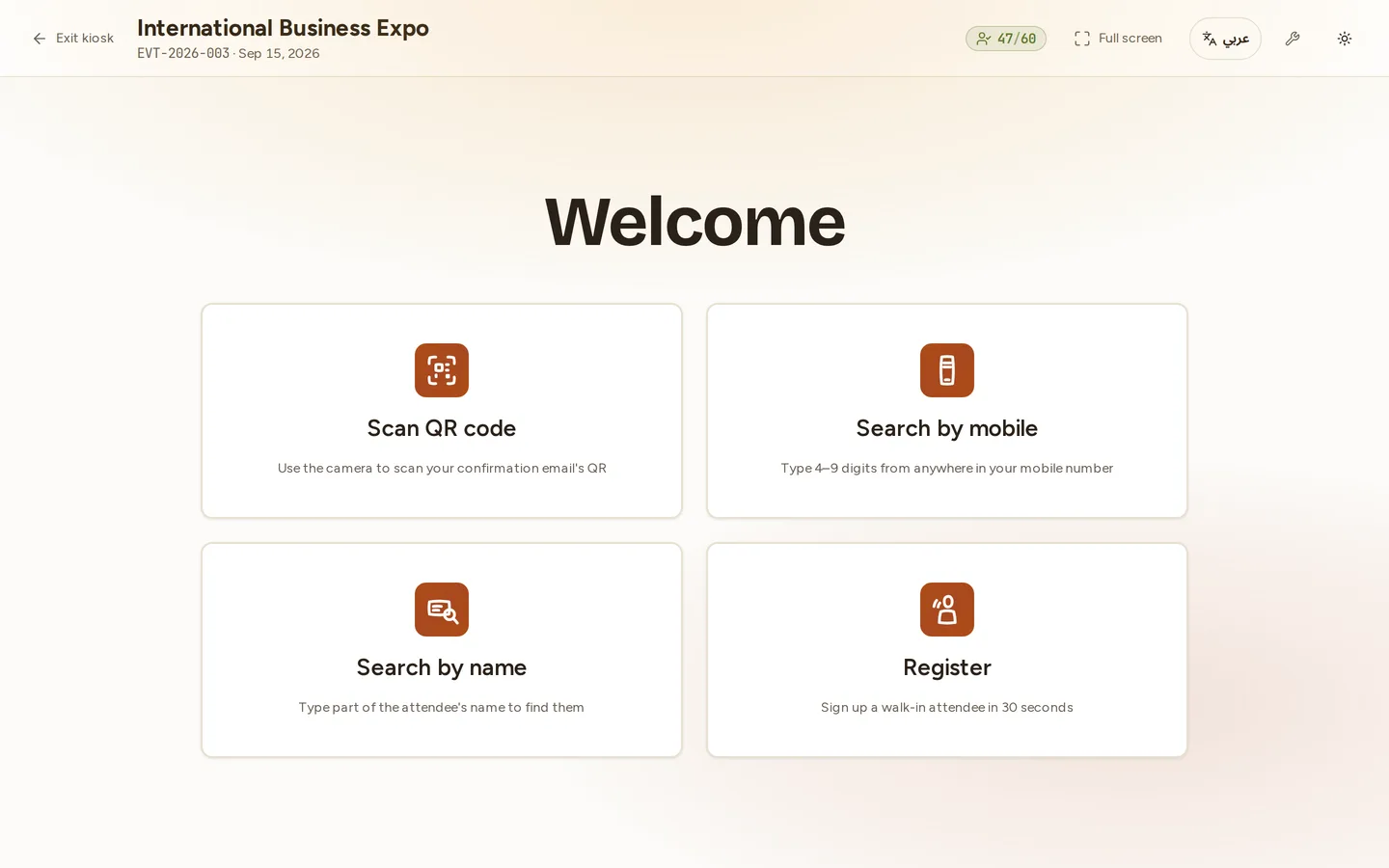
From the kiosk home screen:
1. Scan QR
Mounts the device camera and scans an attendee’s eBadge QR. It accepts both a raw token and a full badge URL. (The camera needs permission; on iOS the kiosk shows how to grant it.) On a successful scan you land on the attendee’s actions card.
2. Search by mobile
Type the last few digits of a mobile number. Saudi formats (+966, 00966,
leading 0) are normalised automatically. If several people match, you get a
picker showing name, masked phone and company, with a checked-in marker.
3. Search by name
Type any part of the attendee’s name — it matches anywhere in the name, not just the start, and needs at least two letters. Use it when somebody arrives without their QR and cannot remember which mobile number they registered with.
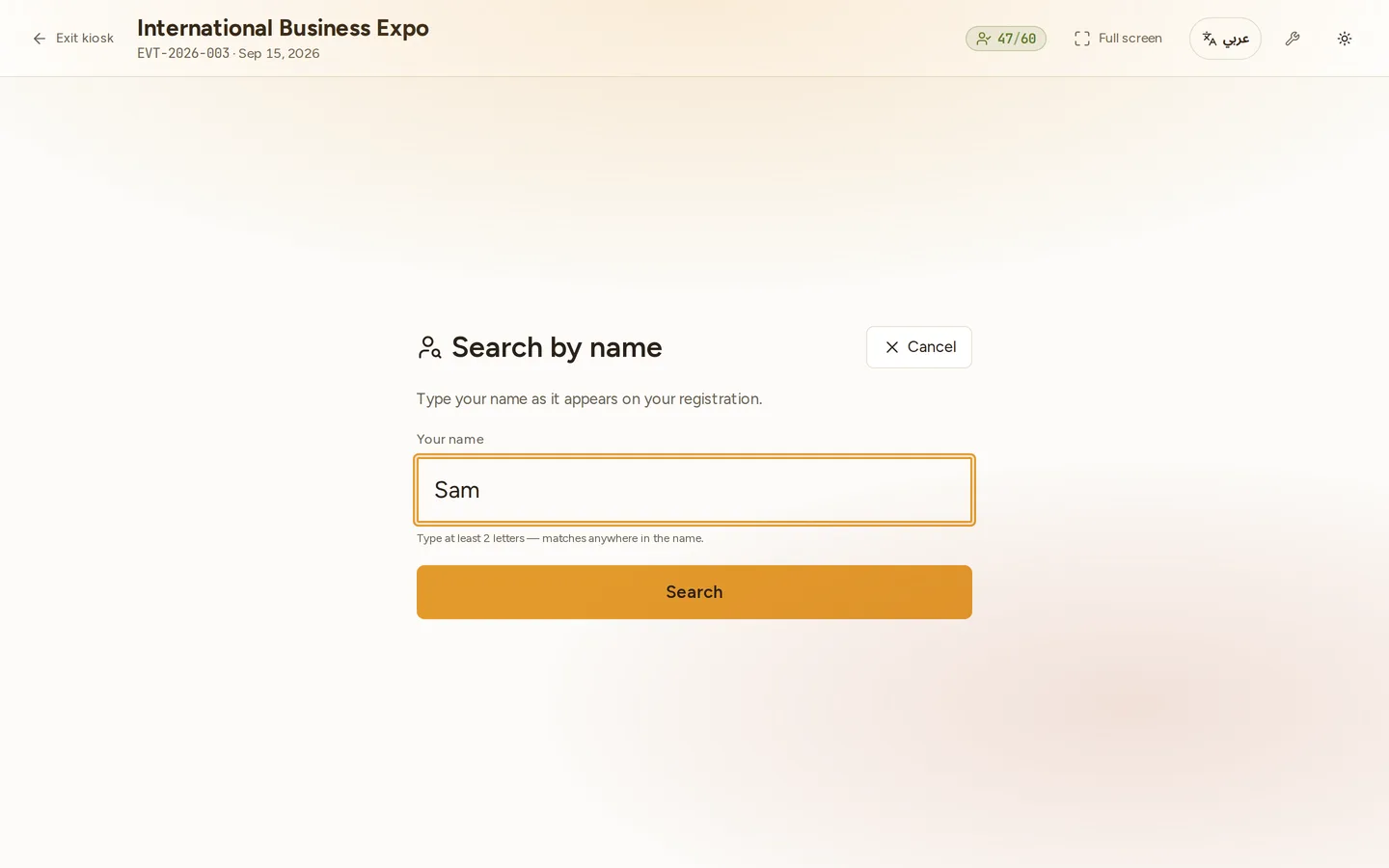
Every action opens a single focused pane like this one, with a Cancel button back to the welcome screen.
4. Register (walk-in)
For someone who didn’t pre-register. The fields come from the event’s registration form, so what the kiosk asks for is whatever that form defines.
When an event has no form yet, Novex creates a default walk-in form, and on that default:
- Full name — required
- Position — required
- Company — required
- Mobile — optional
- Email — optional
Check your own form before the doors open. On the default, a walk-in can be registered with no phone number and no email at all, while Position and Company will block the form until they are filled. If you need contact details captured at the desk, make Mobile or Email required on the event’s registration form first — the kiosk will not ask for them otherwise.
The walk-in is created as a confirmed registration, tagged as a kiosk walk-in, and given its own QR. Walk-ins respect the event’s registration limit on your plan.
If the person is already registered
Novex does not silently merge a duplicate. If the details match somebody who already exists, the kiosk stops and shows you who it found, and the operator decides:
- check in the person it found, or
- Register anyway, which creates a genuinely separate record.
That decision belongs to the person at the desk — two attendees really can share a name, and an automatic merge at the door is not recoverable in the queue.
The actions card
Once you’ve found (or registered) someone, the card shows their name, company, job title and ticket type, plus a checked-in badge if they already are. Three actions:
- Edit info — opens a dialog (staying in fullscreen) to fix the full name, email, phone, company or job title. Only changed fields are saved.
- Print badge — prints the transparent kiosk badge: name, job title, company and QR only — no background, logo or event name — so it overlays a pre-printed blank or lanyard insert. Online it opens the print dialog automatically; offline it renders a printable overlay on the spot.
- Digital check-in — marks the attendee attended, with a timestamp and who checked them in. It’s idempotent: scanning someone twice just says already checked in.
After registering a walk-in you get a quick follow-up screen to check in, print, or go back.
One attendee at a time
The kiosk processes a single registration per action — scan/search/register, then act. It is not a bulk tool. To print many badges at once, use the bulk pre-print PDF instead.
Works offline
The kiosk is built for venues with flaky Wi-Fi:
- Walk-in registrations, edits and check-ins made while offline are queued locally and sync automatically when the connection returns.
- Recently cached registrations are searchable offline, and a just-registered walk-in is merged into search results immediately.
- The queue is durable — it survives a page reload or the device sleeping, and drains reliably in order once you’re back online (you can also force it with Sync now). Nothing is dropped, and a check-in that already synced is never double-applied.
- The connection indicator shows pending-sync counts so you always know whether everything has been saved to the server.
Tips
- Dedicate the device — install to the home screen, lock it to the kiosk tab, and disable sleep so the camera stays ready.
- Pre-print blanks that match your template size if you’re using the transparent overlay print.
- Check in, don’t just print — printing a badge does not check the attendee in; tap Digital check-in so your numbers stay accurate.
Next
- Staff QR check-in — a desk scanner alternative.
- eBadge PDF & QR — what attendees receive by email.