Sign in with Google, Microsoft, Apple or LinkedIn
You can sign in to Novex with an account you already have, instead of typing a password. Four providers are available: Google, Microsoft, Apple and LinkedIn. Microsoft covers Outlook, Hotmail and work Microsoft accounts.
Email-and-password sign-in continues to work alongside them — social sign-in is an alternative, not a replacement.
How to use it
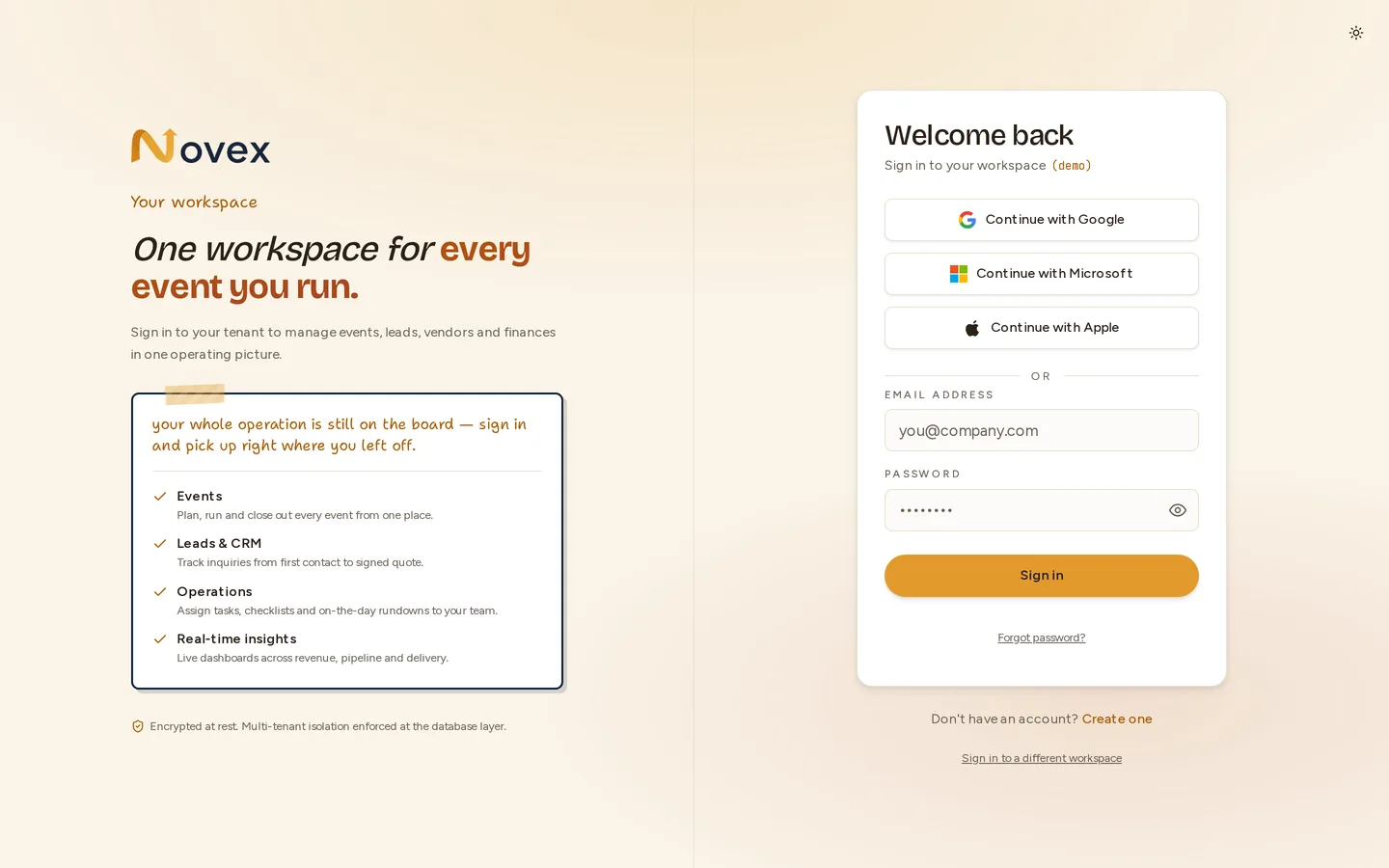
On the sign-in or sign-up screen you’ll see the provider buttons above the email field:
- Continue with Google
- Continue with Microsoft
- Continue with Apple
- Continue with LinkedIn
Click one, choose your account in that provider’s window, and you’re returned to Novex signed in. What happens next depends on whether your email already has a Novex workspace.
What happens with your email
Novex uses the email address from your Google or Microsoft account to decide where to send you:
| Your email… | What happens |
|---|---|
| already has one workspace | You’re signed straight into it — no password needed. |
| belongs to several workspaces | You choose which workspace to open. |
| is new to Novex | You’re taken to a short step to name your workspace — your name is filled in from your account and your email is locked, so you only add a company name and a workspace address (slug). Then you land in the onboarding wizard. |
A workspace created this way has no password — you sign in through Google or Microsoft each time.
Linking to an existing account — and why it’s careful
If your email already has a Novex account, Novex will only link your Google or Microsoft sign-in to it when your provider has confirmed the email really belongs to you. This protects your workspace: it stops someone who merely knows your email address from signing in as you.
- Google always confirms the email, so Google sign-in links smoothly to an existing account.
- Microsoft work or school accounts almost always confirm it too.
- Microsoft personal accounts (Hotmail, Outlook.com, Live) often don’t confirm the email. In that case Novex won’t attach the sign-in to an existing account — you’ll be asked to sign in with your password instead (see Troubleshooting). If your email is new to Novex, you can still continue, and Novex sends a verification email to confirm the address before your first sign-in — exactly like a normal signup.
Two-step verification (security code)
If your account has a security code (two-step verification / TOTP) turned on, signing in with Google or Microsoft is declined on purpose — using it would skip your code. Sign in with your password and your code instead, the way you normally do.
Troubleshooting
If a social sign-in can’t go ahead, Novex sends you back to the sign-in screen with a short message. Here’s what each one means and what to do:
| Message | What it means | What to do |
|---|---|---|
| “We couldn’t confirm that email with your provider. Sign in with your password instead.” | Your email already has a Novex account, but the provider (usually a Microsoft personal account) didn’t confirm the address. | Sign in with your Novex password. |
| “This account uses a security code. Sign in with your password and code.” | The account has two-step verification enabled. | Sign in with your password, then enter your code. |
| “Your provider didn’t share an email address, so we can’t sign you in that way. Use your email and password.” | The Google/Microsoft account didn’t return an email address to Novex. | Sign in with your email and password. |
| “Something went wrong signing you in. Please try again.” | A temporary problem finishing the sign-in. | Try the button again. If it keeps happening, contact support. |
Tips & limits
- Social sign-in is for team members signing in to a workspace. Platform, vendor, and attendee-portal logins are separate and aren’t affected.
- The buttons appear only once the feature is switched on for Novex — if you don’t see them yet, use email and password.
- A social-only account signs in through its provider; there’s no password to remember for it.