Custom questions
Beyond the built-in fields, you can ask an event whatever it needs to know — dietary requirements, which track someone plans to attend, whether they want the workshop. You author the questions once on the event; every registration door then asks them.
Where to author them
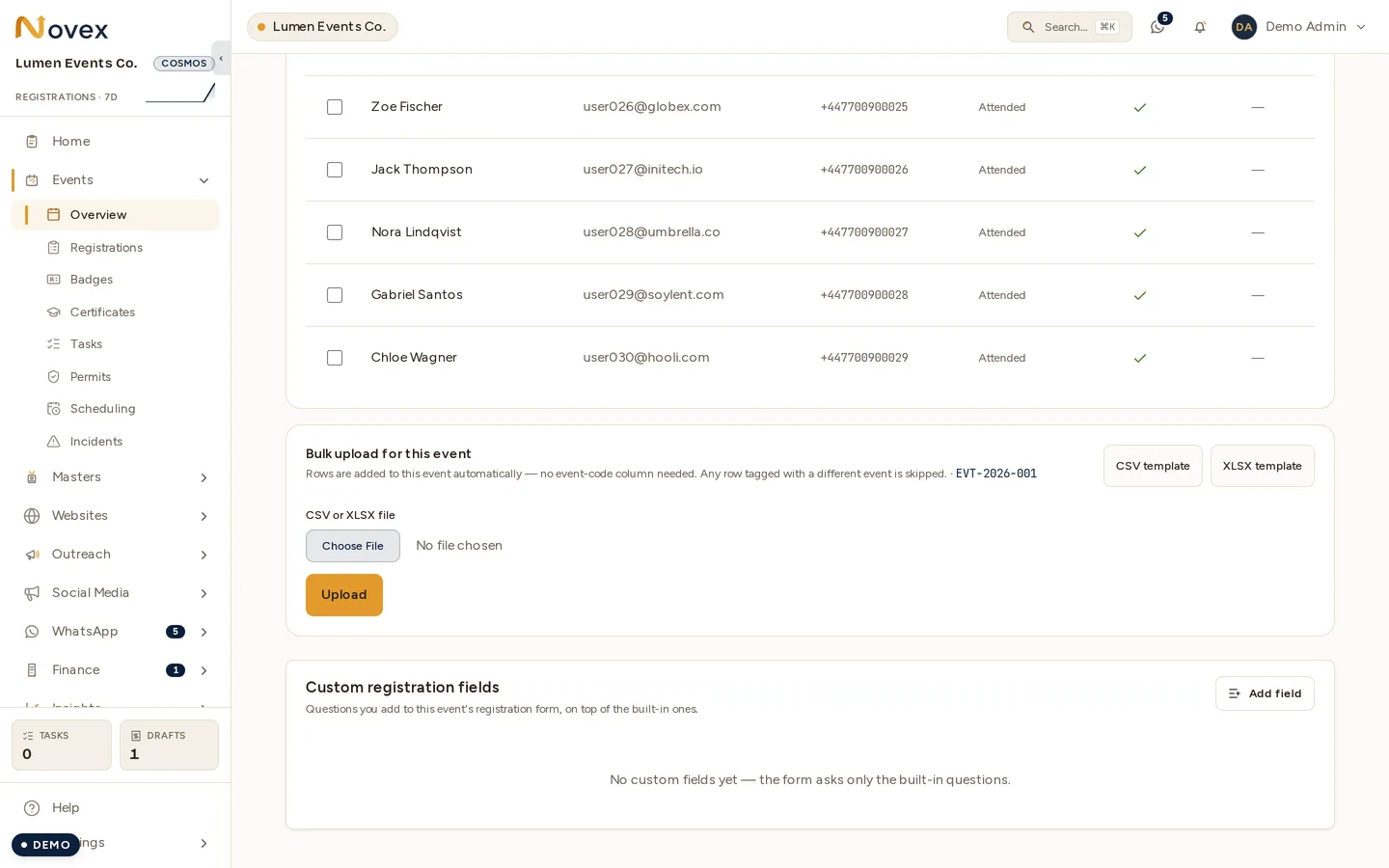
Custom registration fields sits at the bottom of the event’s registration pane, under the attendee table and the bulk-upload panel. The workspace above has not added any, so it shows the zero state — the form asks only the built-in questions until you add one.
Open the event and find Custom registration fields — “Questions you add to this event’s registration form, on top of the built-in ones.” Click Add field.
A form holds up to 20 custom questions. Reorder them with the up/down arrows; the registration form follows that order.
The form must exist first. If you have not created the event’s registration form yet, the editor says so: “Create the registration form first, then add fields to it.”
Answer types
| Type | What the attendee sees |
|---|---|
| Free text | A single-line box. |
| Free text (paragraph) | A multi-line box, for longer answers. |
| Choose from a list | A dropdown. |
| Choose from a long list (searchable) | A dropdown with a search box — for lists too long to scroll. |
| Single choice | Radio buttons, all visible at once. 2 to 6 options. |
| Multiple choice | Checkboxes. Set Maximum choices to cap how many, or leave it empty for no limit. |
| Rating scale | A 1-to-N scale. Set the Scale top (2–10). |
| Country | The standard country picker, so answers stay comparable. |
The option-based types hold up to 50 options each. Single choice is deliberately narrower — its whole point is that every option is on screen at once, so anything longer belongs in Choose from a list.
Each question can be marked Required to register, which is enforced in the browser and again on the server.
Bilingual labels
Every question takes a Label (English) and a Label (Arabic), and — for the option-based types — each option takes both too, side by side on a wide screen and stacked on a phone.
- English is required. Arabic is optional.
- An option with no Arabic label shows its English label on the Arabic form. Nothing breaks; you simply see English in an Arabic list.
- Leaving the Arabic box empty clears an existing translation. That is an instruction, not an accident — it is how you remove a translation you no longer want.
Renaming an option keeps the answers already given. An option’s identity is minted once when you create it and never re-derived from the label, so fixing a typo in “Genertive AI” does not orphan the people who already picked it.
Where the questions appear
The same questions, with the same controls and the same rules, on every door:
- The event page form on your public website.
- The hosted registration page,
/r/<tenant-slug>/<event-code>. - The embedded form on your own site.
- Express registration — an invitee following their private link answers them under Your interests, rather than being handed off to the full form.
A form that asks nothing shows nothing: no section, no heading.
Reading the answers
Answers land on the registration itself, so they appear in the attendee list, the registration detail view and the export — see Managing registrations.
The editor shows a live answer count per question, which is what makes deleting one honest: Delete field names how many attendee answers go with it, and says plainly that it cannot be undone.
Related
- Required fields — the built-in set every registration collects.
- Public registration — the hosted door.
- Express registration — the invitee’s door.
- Localization — how Novex chooses which language to show.