Certificates
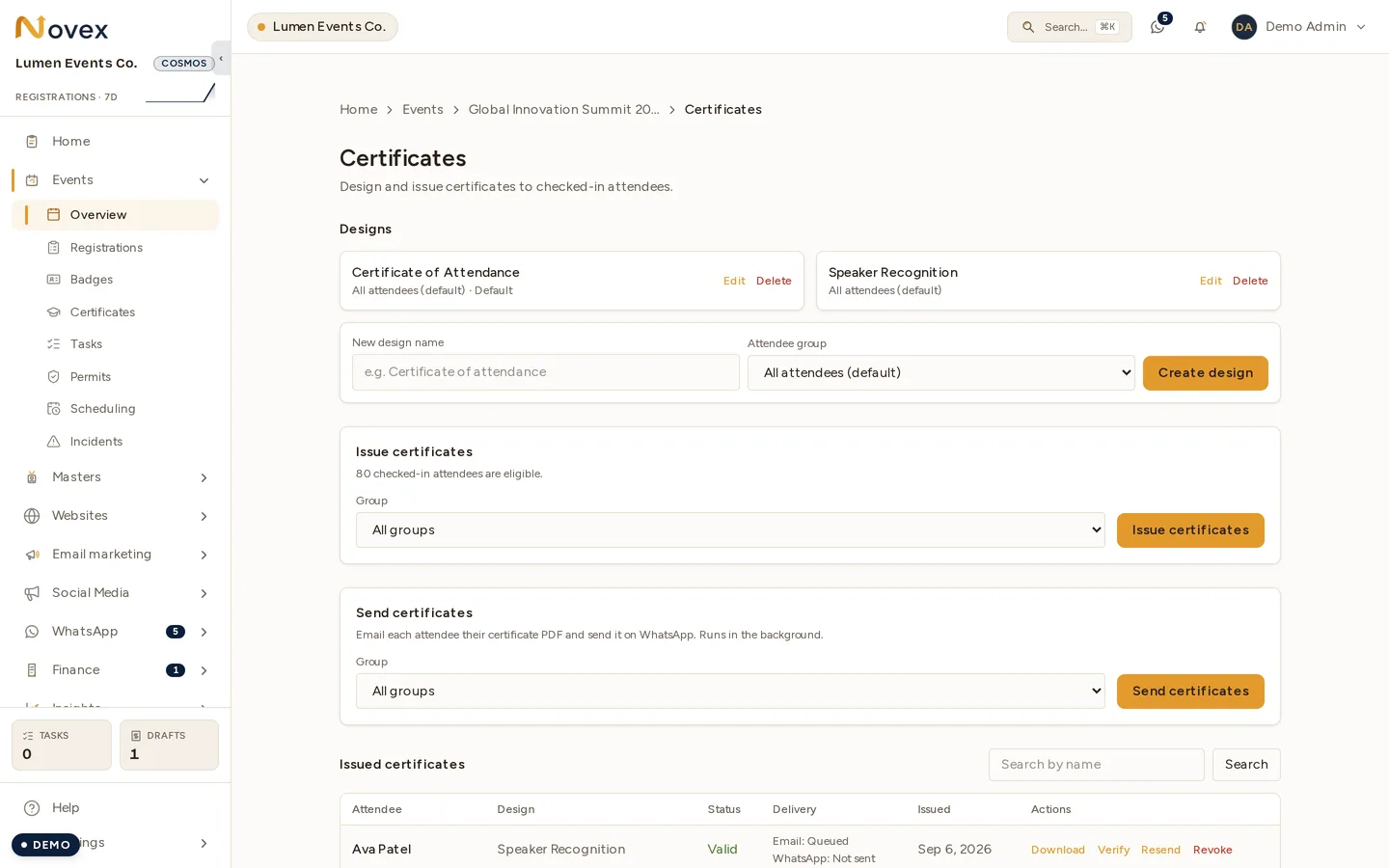
Certificates are the attendance documents you hand out after an event. Each one is produced from your own template, in Arabic and English — you supply the design and Novex places the recipient’s details on it. You can have one template per event or a different one per ticket type, issue them in bulk to everyone who actually checked in, and send them by email and WhatsApp.
A certificate records attendance at the event. It does not record hours, credits, or attendance at individual sessions.
Where to find it
/t/<slug>/events/<id>/certificates— the certificates for one event: its designs, the issue and send panels, and the list of everything issued./t/<slug>/certificates— the workspace-wide list across all your events, for when you want to find one certificate without knowing which event it came from.
Both use the registration.certificates permission.
Designing a certificate
A design is the layout Novex prints onto. You upload a background image and place fields on top of it; positions are absolute millimetres, so what you place is what prints.
Four things can be placed:
| Field | What it prints |
|---|---|
| Recipient name | The attendee’s name, snapshotted when the certificate is issued |
| Event name | The event’s name |
| Event date | The event’s start date |
| QR code | A QR code unique to that certificate |
Text fields carry their own font size, colour and alignment; the QR code carries its own size. The default canvas is 297 × 210 mm — A4 landscape — and you can set anything from 100 mm to 600 mm on either side.
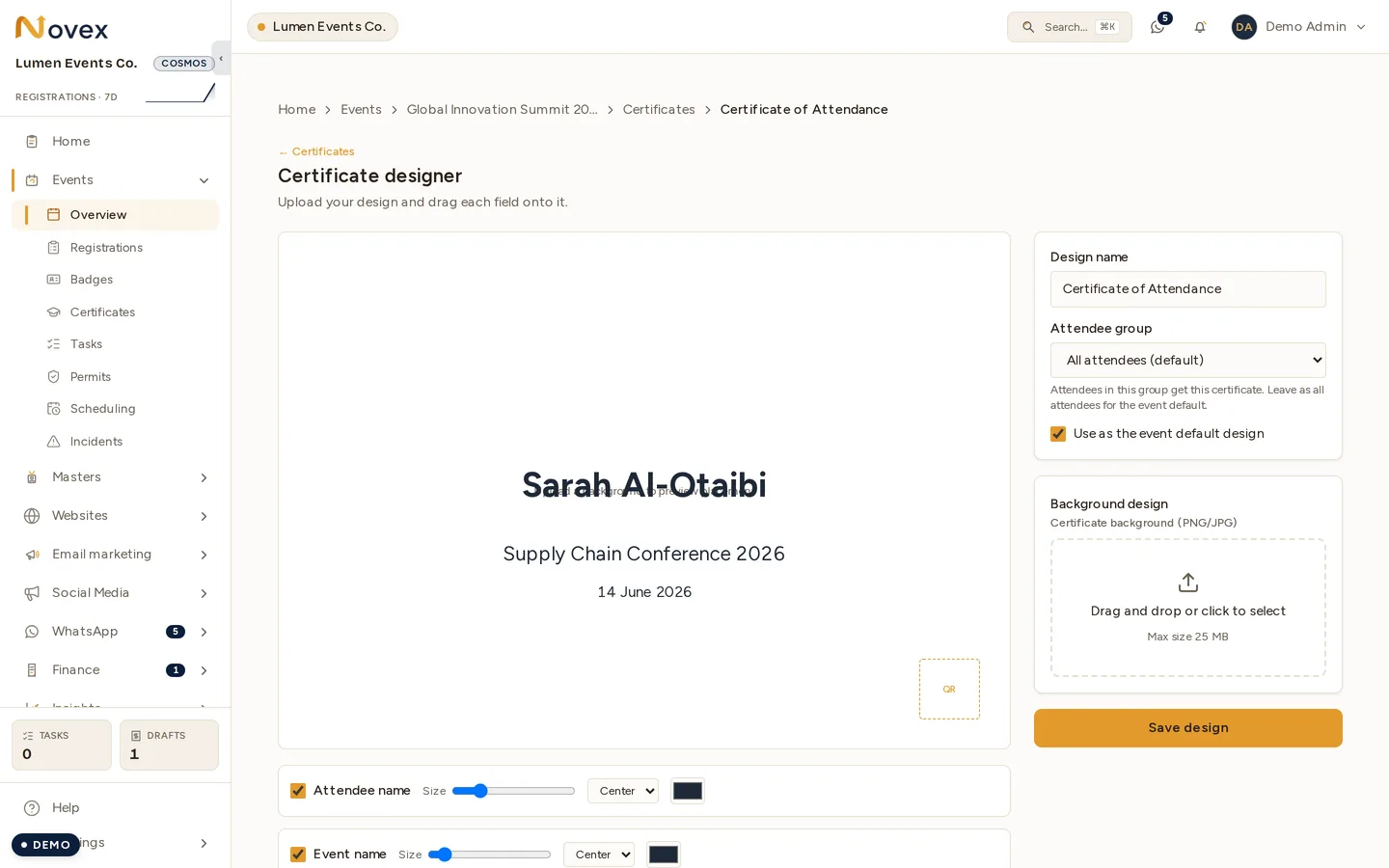
The canvas above shows the designer’s own built-in sample values — Sarah Al-Otaibi, Supply Chain Conference 2026, 14 June 2026 — so you can judge placement before anything is issued. They are not this event’s data, and they never appear on a real certificate: each one is replaced with the attendee’s own details at issue time.
One design, or one per ticket type
Each design is either the event default or tied to a ticket type. When a certificate is issued, Novex resolves the design per attendee:
- If the attendee’s ticket type has its own design, that one is used.
- Otherwise the event’s default design is used.
- If neither exists, that attendee is skipped and counted under no design.
That is how you give speakers a different certificate from general attendees without running the issue step twice.
Issuing
Issuing creates the certificate records. From the Issue panel you can issue to the whole event or narrow it to a single ticket type.
Only attendees who checked in receive a certificate. Registrations that were never checked in — and archived registrations — are not eligible. This is deliberate: the document says the person attended, so it is driven by the check-in record rather than the registration list.
The panel reports four numbers:
| Count | Meaning |
|---|---|
| Eligible | Checked-in attendees considered |
| Issued | New certificates created by this run |
| Skipped | Attendees who already had a certificate for that design |
| No design | Attendees whose ticket type has no design and there is no event default |
Issuing is safe to re-run. It only fills gaps — an attendee who already holds a certificate for a design is skipped, never duplicated. Run it again after a late batch of check-ins and only the new people are added.
The recipient’s name is copied onto the certificate at issue time. Editing the registration afterwards does not rewrite an already-issued certificate.
Sending
Issuing does not send anything. Sending is a separate step, from the Send panel.
- Email goes to every recipient — a registration always has an email address.
- WhatsApp goes to recipients who also have a phone number on their registration. Those without one get email only.
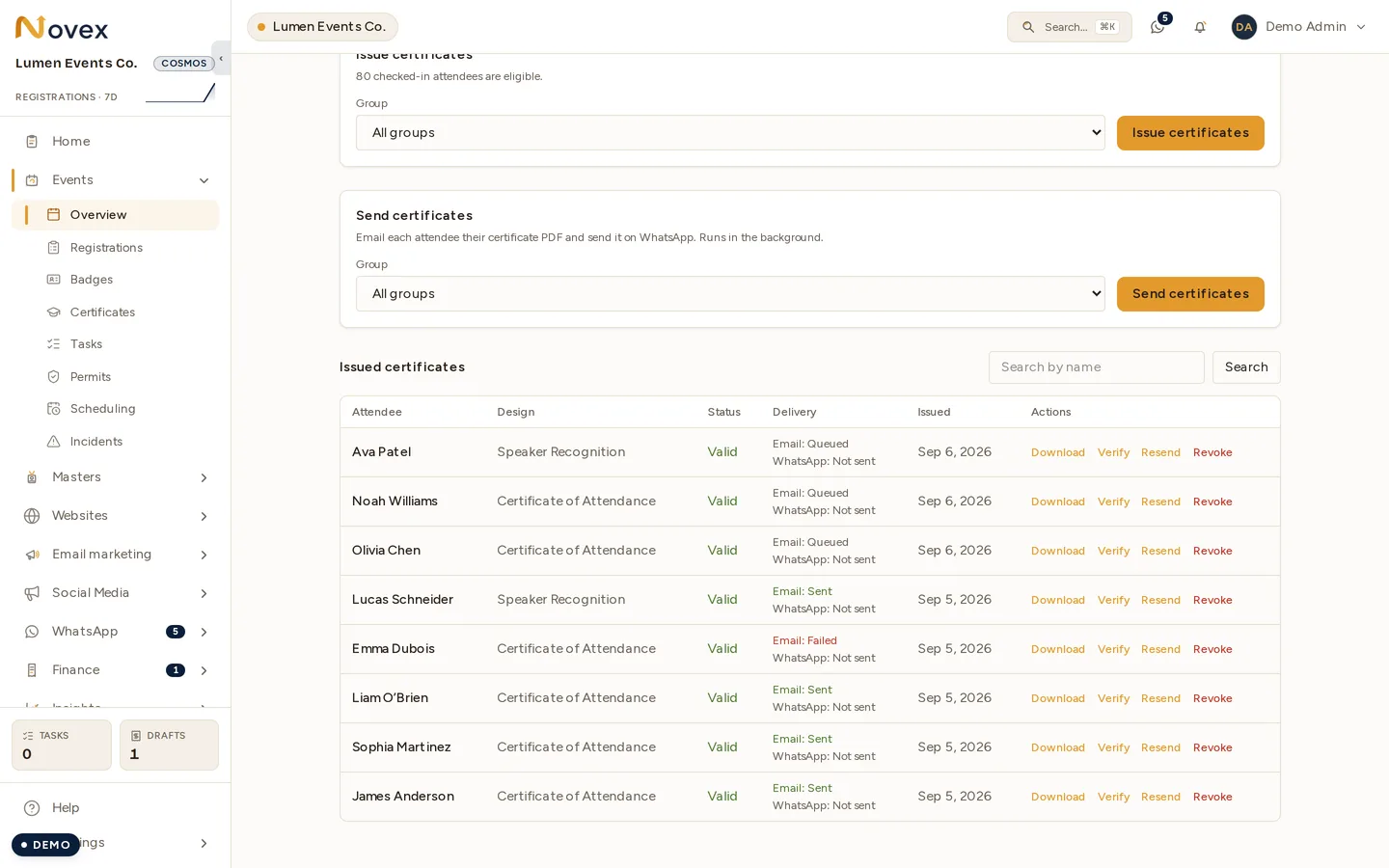
Each certificate tracks its two channels independently, and the list shows a chip per channel — queued, sent, or failed with the error. A send pass skips certificates already delivered on every channel that applies to them, so you can re-run it after adding people without spamming the ones already served.
Individual rows have a Resend action that forces one certificate out again on every channel that applies to that recipient — for the attendee who deleted the email.
Revoking
Revoking marks a certificate revoked, and it takes effect immediately: the document stops being downloadable rather than continuing to hand out a file that still looks valid.
Revoking only affects a certificate that is currently issued, and doing it twice is harmless.
Permissions
| Action | Permission |
|---|---|
| View, design, issue, send and revoke certificates | registration.certificates |
Next
- Managing registrations — the check-in record that decides who is eligible
- Kiosk check-in — how attendees get checked in on the day
- Event documents — the other files attached to an event